> ## Documentation Index
> Fetch the complete documentation index at: https://academy.uagenius.ai/llms.txt
> Use this file to discover all available pages before exploring further.
# Home
> Choose your game, open a product, and make end to end ads now!
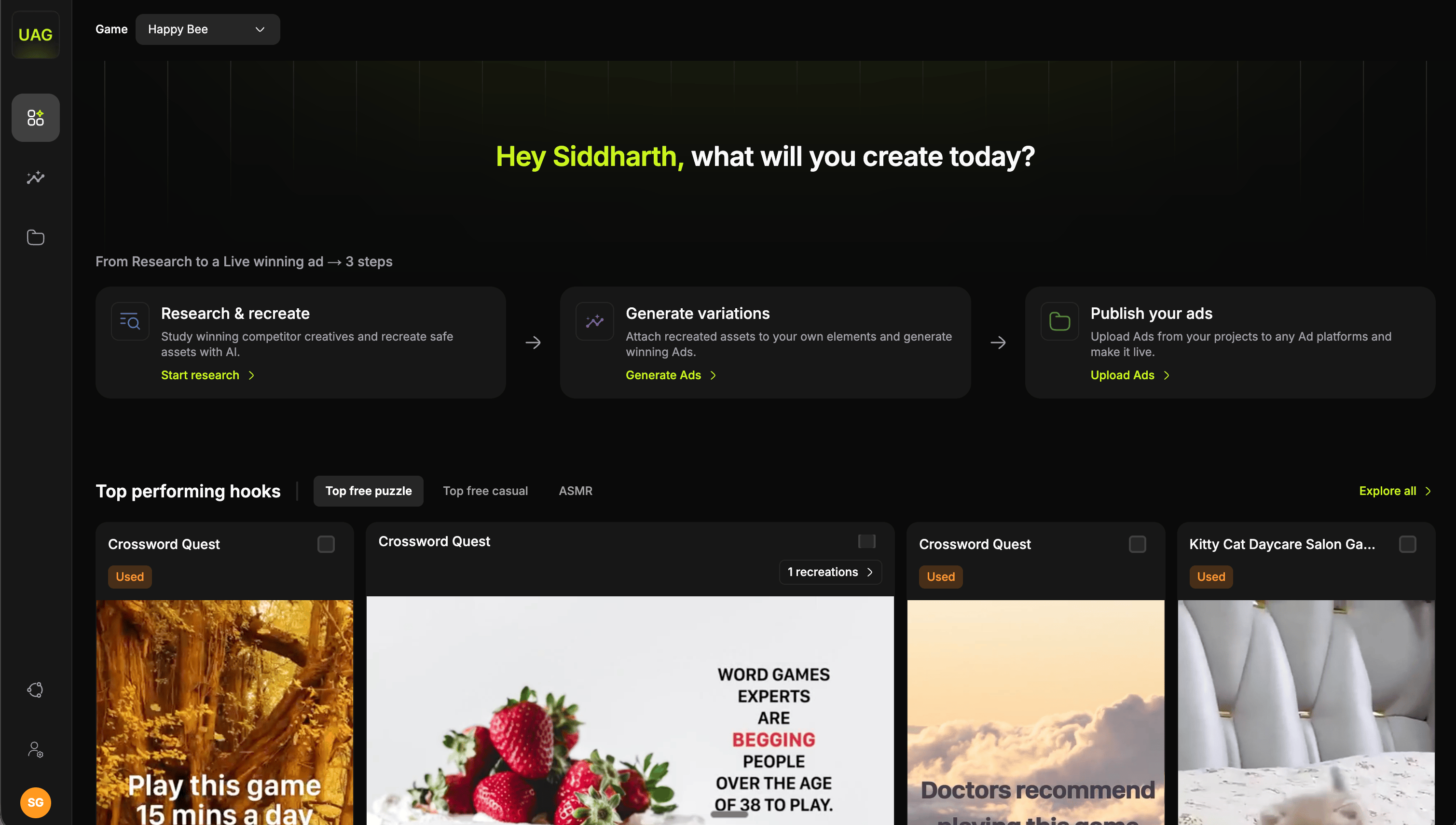 Home is the screen you land on when you open the console. It does three things: it sets which game you are working in, it takes you into the product you need, and it shows you what is performing in the market right now.
## Choose your game
Home is the screen you land on when you open the console. It does three things: it sets which game you are working in, it takes you into the product you need, and it shows you what is performing in the market right now.
## Choose your game
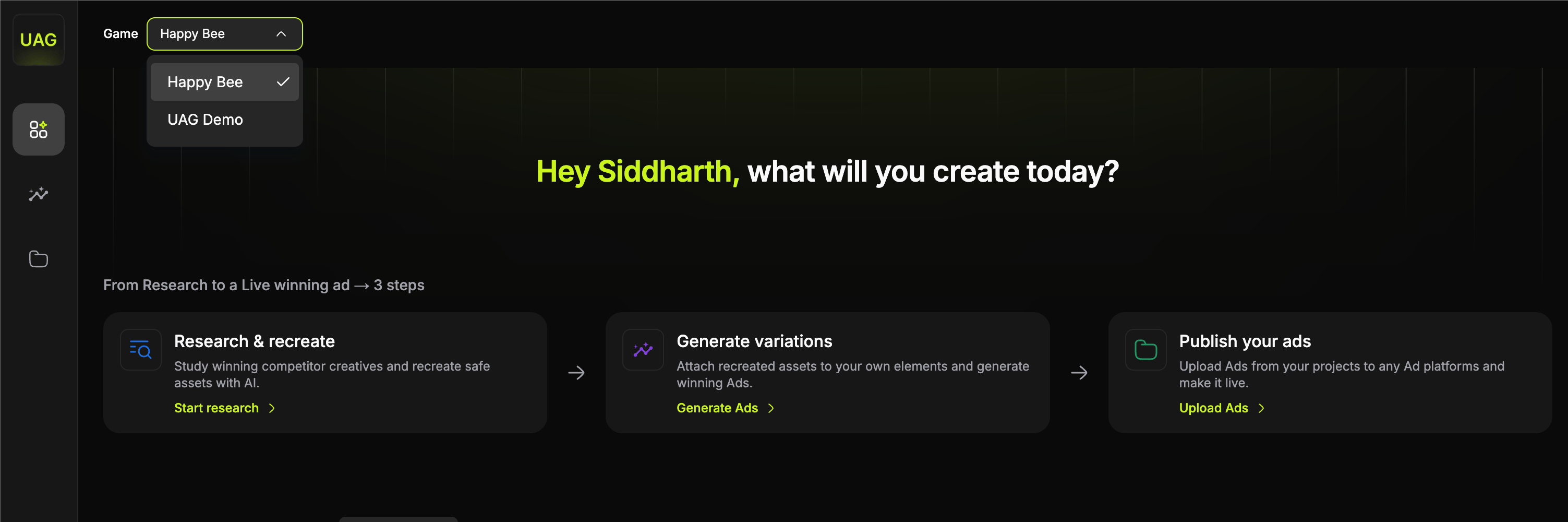 The **Game** selector sits at the top left. Everything you do downstream belongs to whichever game is picked here: the competitor library, your boards, your projects and files, and the brand assets your generations draw on.
Ad account connections and user accounts are shared across every game. Everything else follows the selector, so switching games swaps almost the whole console.
Check the selector before you generate or publish. Assets are created in whichever game is active, so confirming it first keeps your library tidy.
See [Platform overview](/overview) for what a game holds, and [Workspace administration](/workspace-administration) for adding one and giving your team access to it.
## The three products
Under **From Research to a Live winning ad**, three cards open the three products, laid out in the order you use them.
| Product | What it is for | Where it takes you |
| ----------------------- | ---------------------------------------------------------------------- | -------------------------------------------------------------------------------------------------------------------------- |
| **Research & recreate** | Study winning competitor creatives and recreate safe assets with AI. | **Start research** opens [Competitor Research](/competitor-research). |
| **Generate variations** | Attach recreated assets to your own elements and generate winning ads. | **Generate Ads** opens [Video Studio](/video-studio). |
| **Publish your ads** | Upload ads from your projects to any ad platform and make them live. | **Upload Ads** takes you to your finished variations, ready to send to [Meta](/publish-meta) or [Google](/publish-google). |
The arrows between the cards show the intended flow, and it is the loop the whole console is built around. You can open any of the three directly, though, so if a template has just been delivered you can go straight to composing.
## Top performing hooks
The **Game** selector sits at the top left. Everything you do downstream belongs to whichever game is picked here: the competitor library, your boards, your projects and files, and the brand assets your generations draw on.
Ad account connections and user accounts are shared across every game. Everything else follows the selector, so switching games swaps almost the whole console.
Check the selector before you generate or publish. Assets are created in whichever game is active, so confirming it first keeps your library tidy.
See [Platform overview](/overview) for what a game holds, and [Workspace administration](/workspace-administration) for adding one and giving your team access to it.
## The three products
Under **From Research to a Live winning ad**, three cards open the three products, laid out in the order you use them.
| Product | What it is for | Where it takes you |
| ----------------------- | ---------------------------------------------------------------------- | -------------------------------------------------------------------------------------------------------------------------- |
| **Research & recreate** | Study winning competitor creatives and recreate safe assets with AI. | **Start research** opens [Competitor Research](/competitor-research). |
| **Generate variations** | Attach recreated assets to your own elements and generate winning ads. | **Generate Ads** opens [Video Studio](/video-studio). |
| **Publish your ads** | Upload ads from your projects to any ad platform and make them live. | **Upload Ads** takes you to your finished variations, ready to send to [Meta](/publish-meta) or [Google](/publish-google). |
The arrows between the cards show the intended flow, and it is the loop the whole console is built around. You can open any of the three directly, though, so if a template has just been delivered you can go straight to composing.
## Top performing hooks
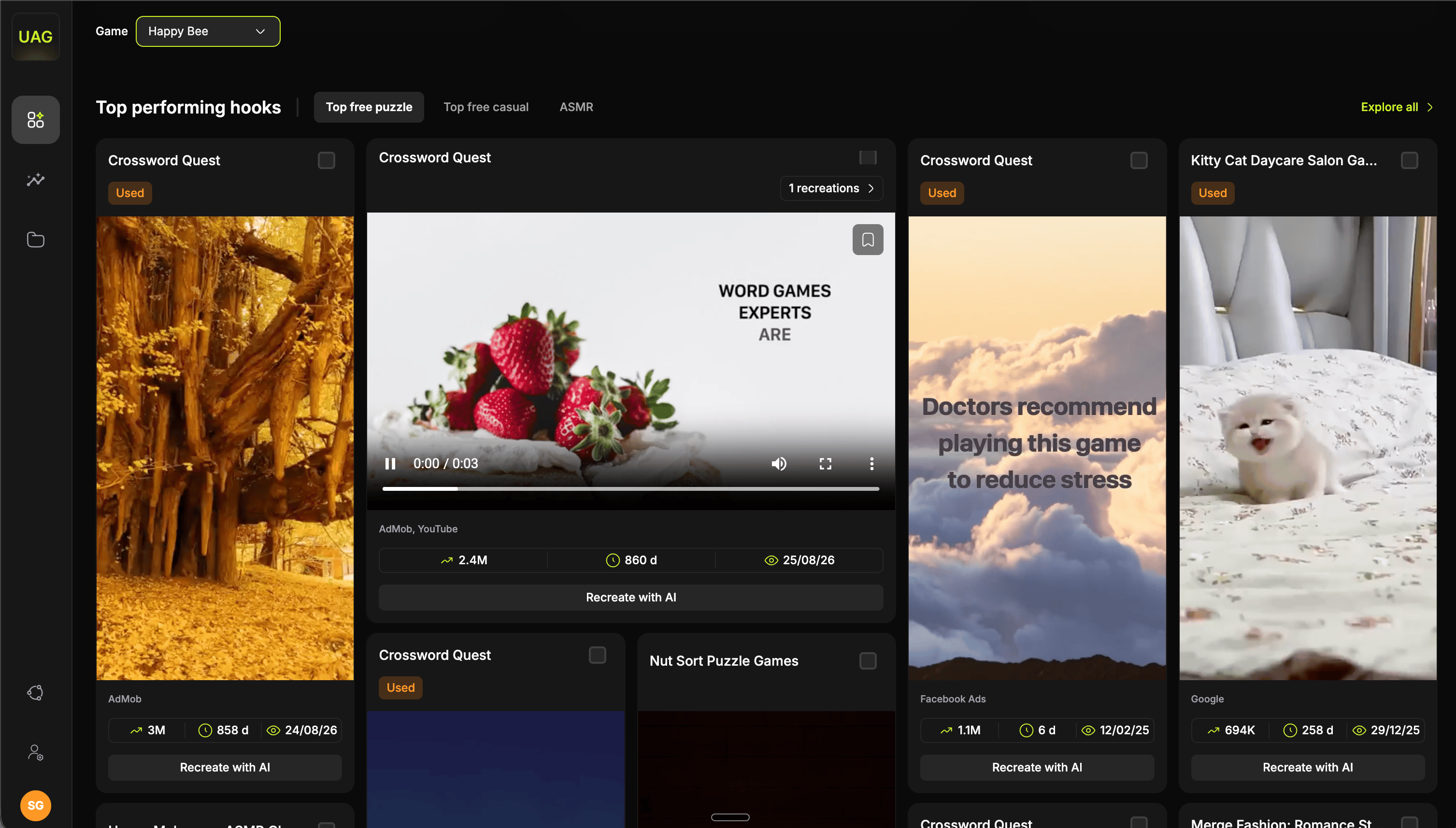 Below the products sits a feed of the hooks working best right now, with category tabs across the top such as **Top Free Puzzle**, **Top Free Casual** and **ASMR**.
These are the same cards you get in the library, so you can tick one and act on it without going anywhere first. **Explore all** opens the full [Competitor Research](/competitor-research) library.
This is the quickest read on the market you will get. Scan the tab closest to your genre, tick anything worth testing, and your research session has started before you have touched a filter.
## Creative jobs
**Creative jobs** sits in the top bar and tracks everything you have set running. Start a recreation, close the flow and start the next thing: the queue keeps working, and you can reach it from any screen in the console.
Opening it gives you one row per job, carrying a thumbnail, the asset name, its category and a progress bar that runs off the job's own clock. When a job lands, the bar is replaced by **Review**, which opens the screen the work is on and retires the row.
### What goes through the queue
| Job | What the row does |
| --------------- | ------------------------------------------------------------------------------------------------------------------------------------------------------------------------------------------------ |
| **Recreation** | A hook or a body recreation. **Review** lands on that asset's recreate screen, with the generation already on the stage. |
| **Variations** | A batch of ad variations from [Video Studio](/video-studio). The row reads **View** rather than Review, since it is finished work rather than a decision waiting on you, and it opens the batch. |
| **Body assets** | Replace, re-colour and re-texture jobs run in parallel, so they arrive as a group. The row reads `2/4 Body assets` and expands to a line per asset, each reviewable on its own. |
### Reading the button
The button reports two things at once, and they are independent, so three of ten done shows both.
| Signal | What it means |
| ------------- | ----------------------------------------------------------- |
| **Lime ring** | Something is still generating. |
| **Red count** | How many jobs have finished and are waiting to be reviewed. |
Starting a batch raises a toast in the corner. Finishing does not, because the red count is the news, and opening the queue clears any outstanding toasts.
A generation can fail. The row grows a red **Failed** badge and the action stays **Review**, because a failure is an outcome rather than an absence. It is still waiting to be looked at, and going there is what clears it.
A generation you start on the recreate page is not listed while you are standing on that page, since you can already see it happening. The moment you move away it joins the queue, so the row becomes your way back to it.
## What to do next
The steps that get a new game ready, in priority order.
Every filter in the asset library, and how to read a competitor card.
Below the products sits a feed of the hooks working best right now, with category tabs across the top such as **Top Free Puzzle**, **Top Free Casual** and **ASMR**.
These are the same cards you get in the library, so you can tick one and act on it without going anywhere first. **Explore all** opens the full [Competitor Research](/competitor-research) library.
This is the quickest read on the market you will get. Scan the tab closest to your genre, tick anything worth testing, and your research session has started before you have touched a filter.
## Creative jobs
**Creative jobs** sits in the top bar and tracks everything you have set running. Start a recreation, close the flow and start the next thing: the queue keeps working, and you can reach it from any screen in the console.
Opening it gives you one row per job, carrying a thumbnail, the asset name, its category and a progress bar that runs off the job's own clock. When a job lands, the bar is replaced by **Review**, which opens the screen the work is on and retires the row.
### What goes through the queue
| Job | What the row does |
| --------------- | ------------------------------------------------------------------------------------------------------------------------------------------------------------------------------------------------ |
| **Recreation** | A hook or a body recreation. **Review** lands on that asset's recreate screen, with the generation already on the stage. |
| **Variations** | A batch of ad variations from [Video Studio](/video-studio). The row reads **View** rather than Review, since it is finished work rather than a decision waiting on you, and it opens the batch. |
| **Body assets** | Replace, re-colour and re-texture jobs run in parallel, so they arrive as a group. The row reads `2/4 Body assets` and expands to a line per asset, each reviewable on its own. |
### Reading the button
The button reports two things at once, and they are independent, so three of ten done shows both.
| Signal | What it means |
| ------------- | ----------------------------------------------------------- |
| **Lime ring** | Something is still generating. |
| **Red count** | How many jobs have finished and are waiting to be reviewed. |
Starting a batch raises a toast in the corner. Finishing does not, because the red count is the news, and opening the queue clears any outstanding toasts.
A generation can fail. The row grows a red **Failed** badge and the action stays **Review**, because a failure is an outcome rather than an absence. It is still waiting to be looked at, and going there is what clears it.
A generation you start on the recreate page is not listed while you are standing on that page, since you can already see it happening. The moment you move away it joins the queue, so the row becomes your way back to it.
## What to do next
The steps that get a new game ready, in priority order.
Every filter in the asset library, and how to read a competitor card.