> ## Documentation Index
> Fetch the complete documentation index at: https://academy.uagenius.ai/llms.txt
> Use this file to discover all available pages before exploring further.
# Projects
> Every file in your game, organised, filtered and searchable.
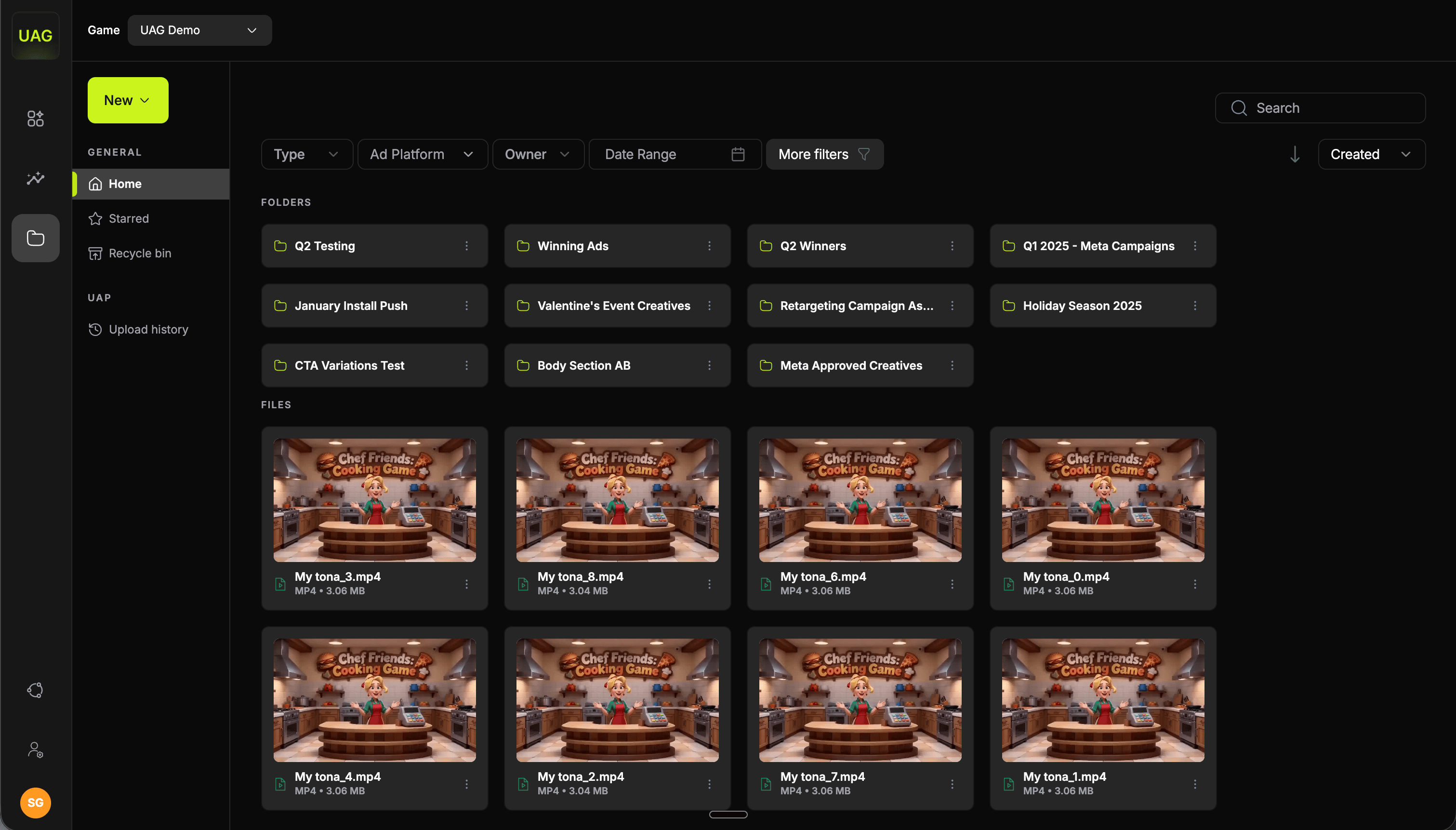
Projects is your game's file library, a Drive-like space for everything you upload and every batch Video Studio renders.
 Recreated hooks work differently. They stay with the competitor hook they were built from, in [Competitor research](/competitor-research) under **Asset Status → Recreated Hooks**, and you pick them from the **Hook** column in Video Studio.
## Navigation
The left sidebar has two sections:
| Section | Contents |
| ----------- | ----------------------------------------------------------------------------------------------------------------- |
| **General** | **Home** for your folders and files, **Starred** for files you have marked, and **Recycle bin** for deleted files |
| **UAP** | **Upload history**, the log of every publish to Meta and Google |
## Adding files
The **New** button offers:
* **Create folder**
* **Upload files**
* **Upload folder**
Uploaded assets become available in the Video Studio pickers alongside generated ones, so this is how you bring in footage produced outside the platform.
## Filters
Recreated hooks work differently. They stay with the competitor hook they were built from, in [Competitor research](/competitor-research) under **Asset Status → Recreated Hooks**, and you pick them from the **Hook** column in Video Studio.
## Navigation
The left sidebar has two sections:
| Section | Contents |
| ----------- | ----------------------------------------------------------------------------------------------------------------- |
| **General** | **Home** for your folders and files, **Starred** for files you have marked, and **Recycle bin** for deleted files |
| **UAP** | **Upload history**, the log of every publish to Meta and Google |
## Adding files
The **New** button offers:
* **Create folder**
* **Upload files**
* **Upload folder**
Uploaded assets become available in the Video Studio pickers alongside generated ones, so this is how you bring in footage produced outside the platform.
## Filters
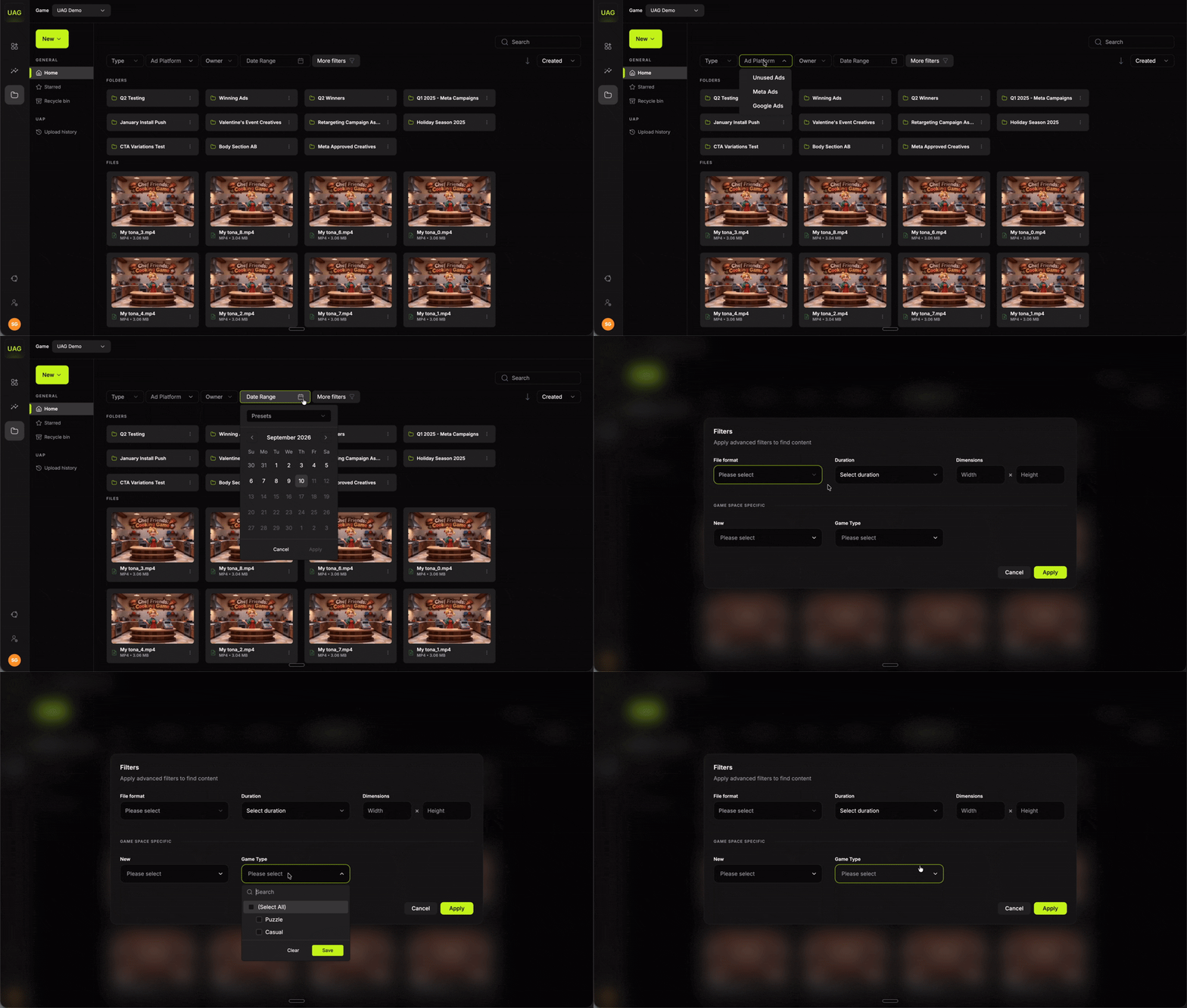 The primary filter row covers **Type**, **Ad Platform**, **Owner** and **Date Range**.
**More filters** opens the rest:
* **File format**
* **Duration**
* **Dimensions**, as width by height
Dimensions is the quick way to pull every asset in a given aspect ratio when you are assembling a batch that needs to match.
The custom properties you have defined for your game, for example:
* **Creative Concept**
* **Style**
* **Creative Concept copy**
* **Content style**
You define these yourself under **Admin panel → Games → Asset Properties → Manage**, and each field you create appears here as a filter. See [Workspace administration](/workspace-administration).
The **Game space specific** filters are what keep a library of several thousand generated files easy to work with. Defining the fields before you start generating in volume means every new file arrives already tagged.
## File detail
The primary filter row covers **Type**, **Ad Platform**, **Owner** and **Date Range**.
**More filters** opens the rest:
* **File format**
* **Duration**
* **Dimensions**, as width by height
Dimensions is the quick way to pull every asset in a given aspect ratio when you are assembling a batch that needs to match.
The custom properties you have defined for your game, for example:
* **Creative Concept**
* **Style**
* **Creative Concept copy**
* **Content style**
You define these yourself under **Admin panel → Games → Asset Properties → Manage**, and each field you create appears here as a filter. See [Workspace administration](/workspace-administration).
The **Game space specific** filters are what keep a library of several thousand generated files easy to work with. Defining the fields before you start generating in volume means every new file arrives already tagged.
## File detail
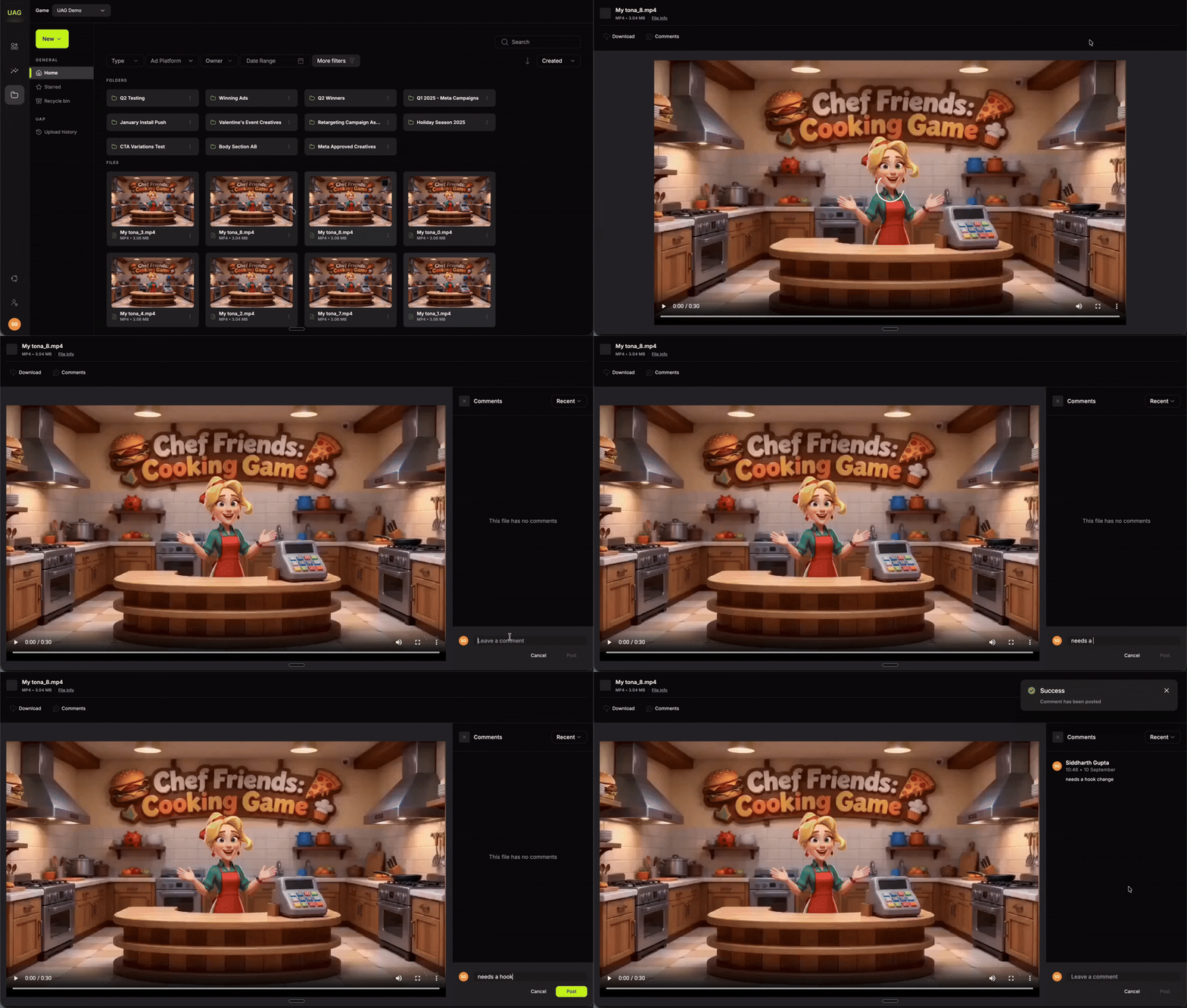 Opening a file shows a preview alongside:
* **Download**
* **Comments**, a threaded discussion on the file for review without leaving the console
* **File info**: Name, Saved in, Size, Modified, Type, Uploaded by, Date uploaded, Duration and Dimensions
Comments are the right home for creative feedback, because a note attached to the file stays with it and is still there when someone revisits the asset next quarter.
## Upload history
Opening a file shows a preview alongside:
* **Download**
* **Comments**, a threaded discussion on the file for review without leaving the console
* **File info**: Name, Saved in, Size, Modified, Type, Uploaded by, Date uploaded, Duration and Dimensions
Comments are the right home for creative feedback, because a note attached to the file stays with it and is still there when someone revisits the asset next quarter.
## Upload history
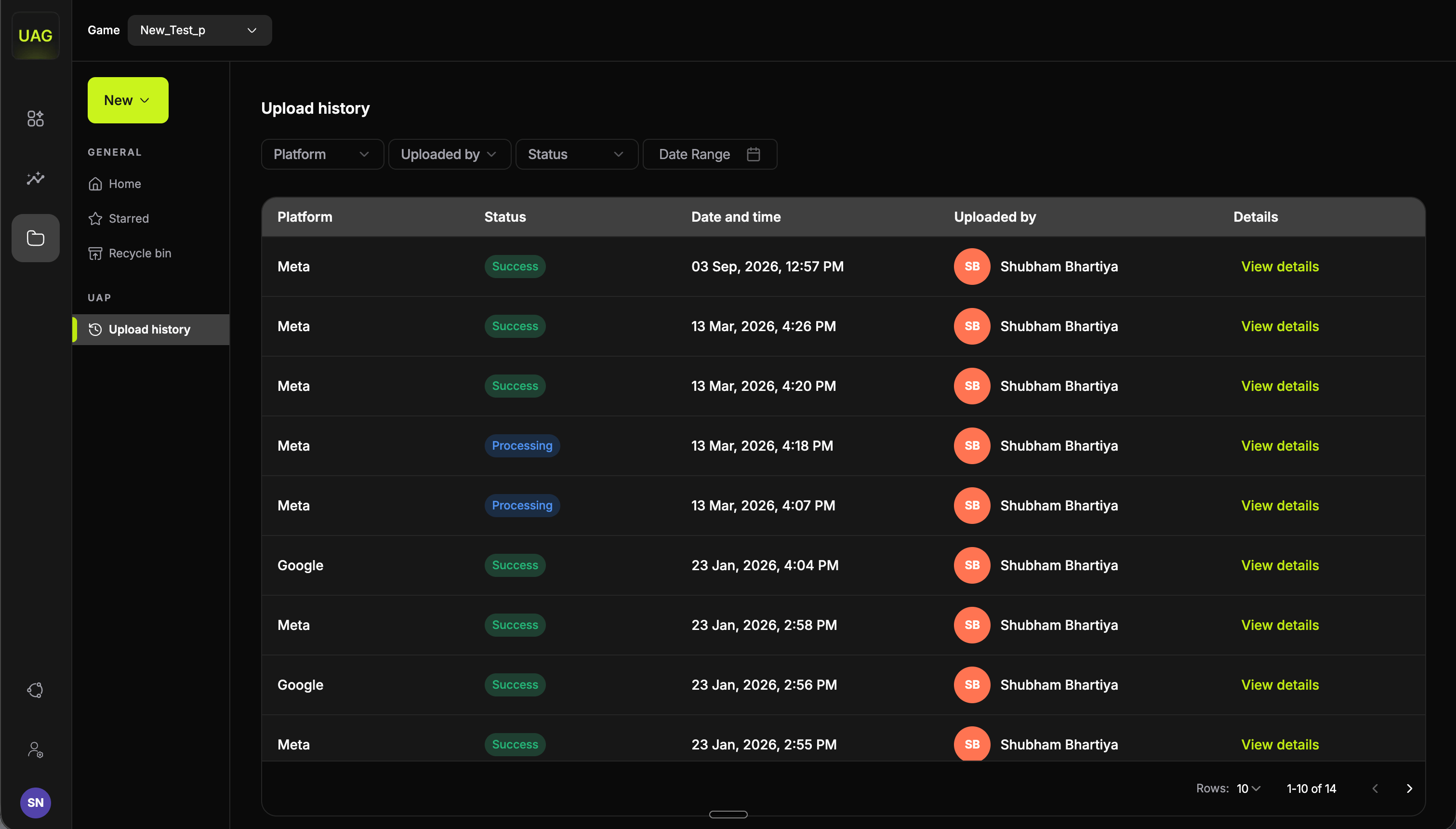 The publish log for the game. Each entry records:
| Column | Meaning |
| ----------------- | ------------------------------------------------------------- |
| **Platform** | Meta or Google. |
| **Status** | **Success**, or `n/n failed` where some files need attention. |
| **Date and time** | When the upload ran. |
| **Uploaded by** | Which team member ran it. |
**View details** expands to per-file status messages returned by the ad platform.
When a result shows a partial failure, open the details first. The message names the cause and tells you which files to re-run, so you only repeat the ones that need it.
## Keeping the library easy to work with
Generated batches build up quickly, since a single Video Studio project can add 100 files.
* **Folder by cycle** to keep a batch together. A folder per test round reads far better than a flat list.
* **Star your winners.** The **Starred** view then becomes your proven-creative shortlist, which is where the next round of variations should start from.
* **Tag as you go** with your custom properties. A few seconds per file keeps the whole library searchable.
* **Recycle bin** holds deleted files, so tidying up is safe and reversible.
The publish log for the game. Each entry records:
| Column | Meaning |
| ----------------- | ------------------------------------------------------------- |
| **Platform** | Meta or Google. |
| **Status** | **Success**, or `n/n failed` where some files need attention. |
| **Date and time** | When the upload ran. |
| **Uploaded by** | Which team member ran it. |
**View details** expands to per-file status messages returned by the ad platform.
When a result shows a partial failure, open the details first. The message names the cause and tells you which files to re-run, so you only repeat the ones that need it.
## Keeping the library easy to work with
Generated batches build up quickly, since a single Video Studio project can add 100 files.
* **Folder by cycle** to keep a batch together. A folder per test round reads far better than a flat list.
* **Star your winners.** The **Starred** view then becomes your proven-creative shortlist, which is where the next round of variations should start from.
* **Tag as you go** with your custom properties. A few seconds per file keeps the whole library searchable.
* **Recycle bin** holds deleted files, so tidying up is safe and reversible.