> ## Documentation Index
> Fetch the complete documentation index at: https://academy.uagenius.ai/llms.txt
> Use this file to discover all available pages before exploring further.
# Saved Assets
> Organise your research into boards, and bring your own footage into the library.
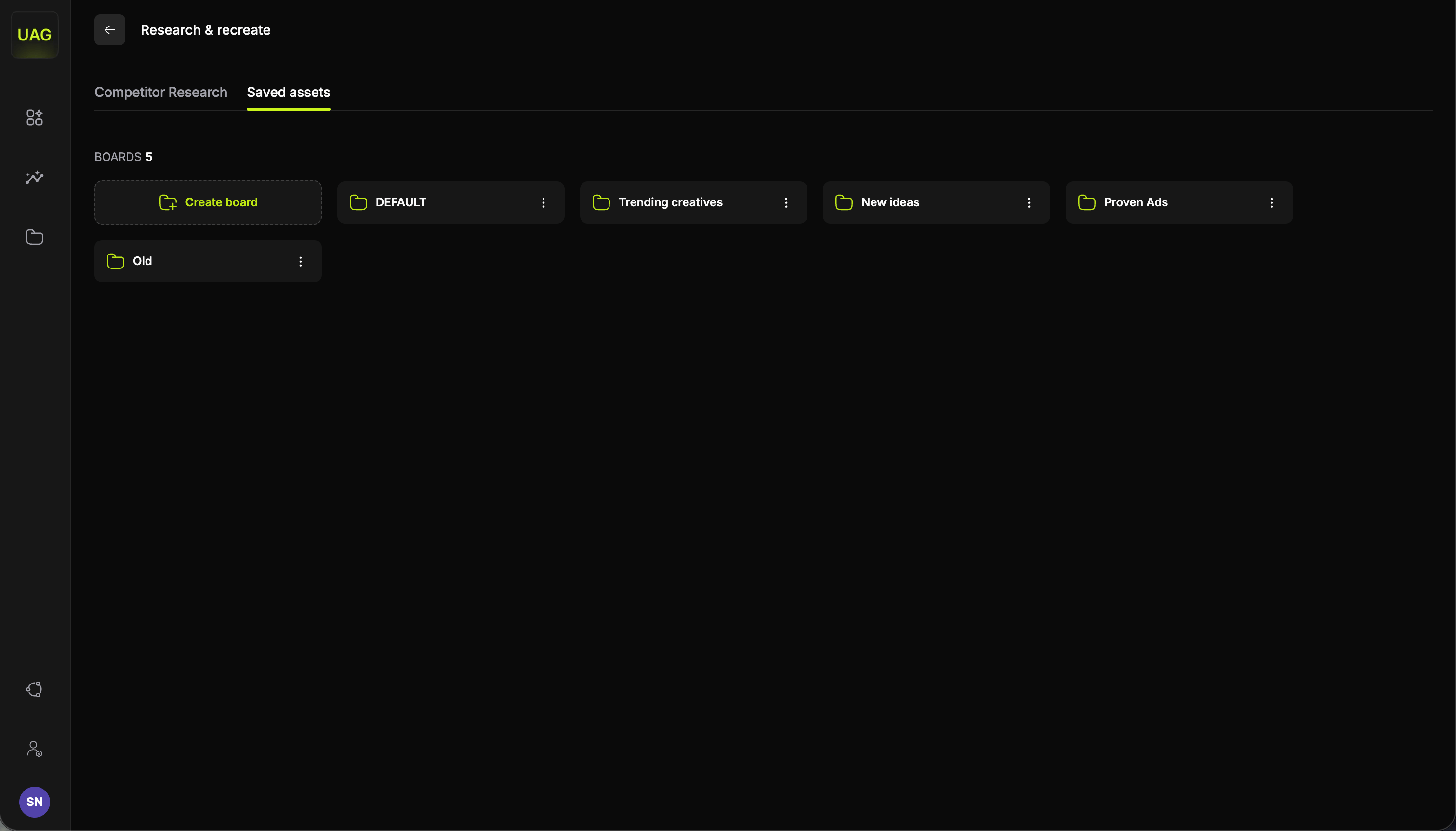
The **Saved assets** tab holds your bookmarked ads, organised into **boards**. It is also where you bring your own footage into the library.
 ## Boards
Boards are how research becomes a plan. Rather than one undifferentiated pile of favourites, group them around the thing you are about to do: a board per test cycle, per concept you are exploring, or per quarter's creative theme. Asset pickers elsewhere in the console pull directly from your boards, so a well-kept board turns into a [Video Studio](/video-studio) session with no re-searching.
Open a board and you get the same sub-tabs, filters, sort controls and card signals you use out in the library, plus an **End Card** sub-tab, since end cards are the asset type you bring yourself. [Working with each section](/competitor-research#working-with-each-section) covers what is specific to each asset type.
## Uploading your own assets
Boards hold your own footage as well as bookmarked competitor ads. Inside a board, the button in the top right uploads from your machine, labelled for the sub-tab you are on, so on **Hook** it reads **Upload own hook**.
Anything you upload sits in the same grid as your bookmarks, carries the same **New** and **Used** status, and answers to the same filters and sorting.
One video can become up to three separate assets. In the **Upload from video** modal you choose which parts you want, mark where each one sits, and upload them together.
Each asset type has its own card with a toggle: **Upload Hook?**, **Upload Body?** and **Upload End Card?**. Turn on the ones you want out of this video. Anything left off stays at 0.0s and is not uploaded.
Each part you switch on appears as a section on the timeline under **Set video sections**. Drag the handles to set where it starts and ends, with a minimum of 1 second per section, and its card shows the length as you adjust it. A preview player sits alongside, so you can watch the video while you place the marks.
Under **Save asset for reuse**, tick the boards the assets should go into. Search finds a board by name, and the folder button creates a new one without leaving the modal. You can tick more than one board, so a single upload can serve two test cycles at once.
Select **Upload**. Every section you toggled on arrives as its own asset, filed under its own sub-tab in each board you ticked.
This is how one video becomes reusable parts. Upload a past winner or a fresh gameplay capture, split it into hook, body and end card, and each piece is then available on its own in the [Video Studio](/video-studio) pickers.
## What to do next
Find the hooks, gameplays, texts and audio worth saving.
Combine what is on your boards into every variation at once.
## Boards
Boards are how research becomes a plan. Rather than one undifferentiated pile of favourites, group them around the thing you are about to do: a board per test cycle, per concept you are exploring, or per quarter's creative theme. Asset pickers elsewhere in the console pull directly from your boards, so a well-kept board turns into a [Video Studio](/video-studio) session with no re-searching.
Open a board and you get the same sub-tabs, filters, sort controls and card signals you use out in the library, plus an **End Card** sub-tab, since end cards are the asset type you bring yourself. [Working with each section](/competitor-research#working-with-each-section) covers what is specific to each asset type.
## Uploading your own assets
Boards hold your own footage as well as bookmarked competitor ads. Inside a board, the button in the top right uploads from your machine, labelled for the sub-tab you are on, so on **Hook** it reads **Upload own hook**.
Anything you upload sits in the same grid as your bookmarks, carries the same **New** and **Used** status, and answers to the same filters and sorting.
One video can become up to three separate assets. In the **Upload from video** modal you choose which parts you want, mark where each one sits, and upload them together.
Each asset type has its own card with a toggle: **Upload Hook?**, **Upload Body?** and **Upload End Card?**. Turn on the ones you want out of this video. Anything left off stays at 0.0s and is not uploaded.
Each part you switch on appears as a section on the timeline under **Set video sections**. Drag the handles to set where it starts and ends, with a minimum of 1 second per section, and its card shows the length as you adjust it. A preview player sits alongside, so you can watch the video while you place the marks.
Under **Save asset for reuse**, tick the boards the assets should go into. Search finds a board by name, and the folder button creates a new one without leaving the modal. You can tick more than one board, so a single upload can serve two test cycles at once.
Select **Upload**. Every section you toggled on arrives as its own asset, filed under its own sub-tab in each board you ticked.
This is how one video becomes reusable parts. Upload a past winner or a fresh gameplay capture, split it into hook, body and end card, and each piece is then available on its own in the [Video Studio](/video-studio) pickers.
## What to do next
Find the hooks, gameplays, texts and audio worth saving.
Combine what is on your boards into every variation at once.