> ## Documentation Index
> Fetch the complete documentation index at: https://academy.uagenius.ai/llms.txt
> Use this file to discover all available pages before exploring further.
# Video Studio
> Combine hooks, texts, bodies and audio into every variation at once.
Video Studio assembles finished ads from parts. You choose several of each ingredient and the studio renders **every combination** as a separate video.
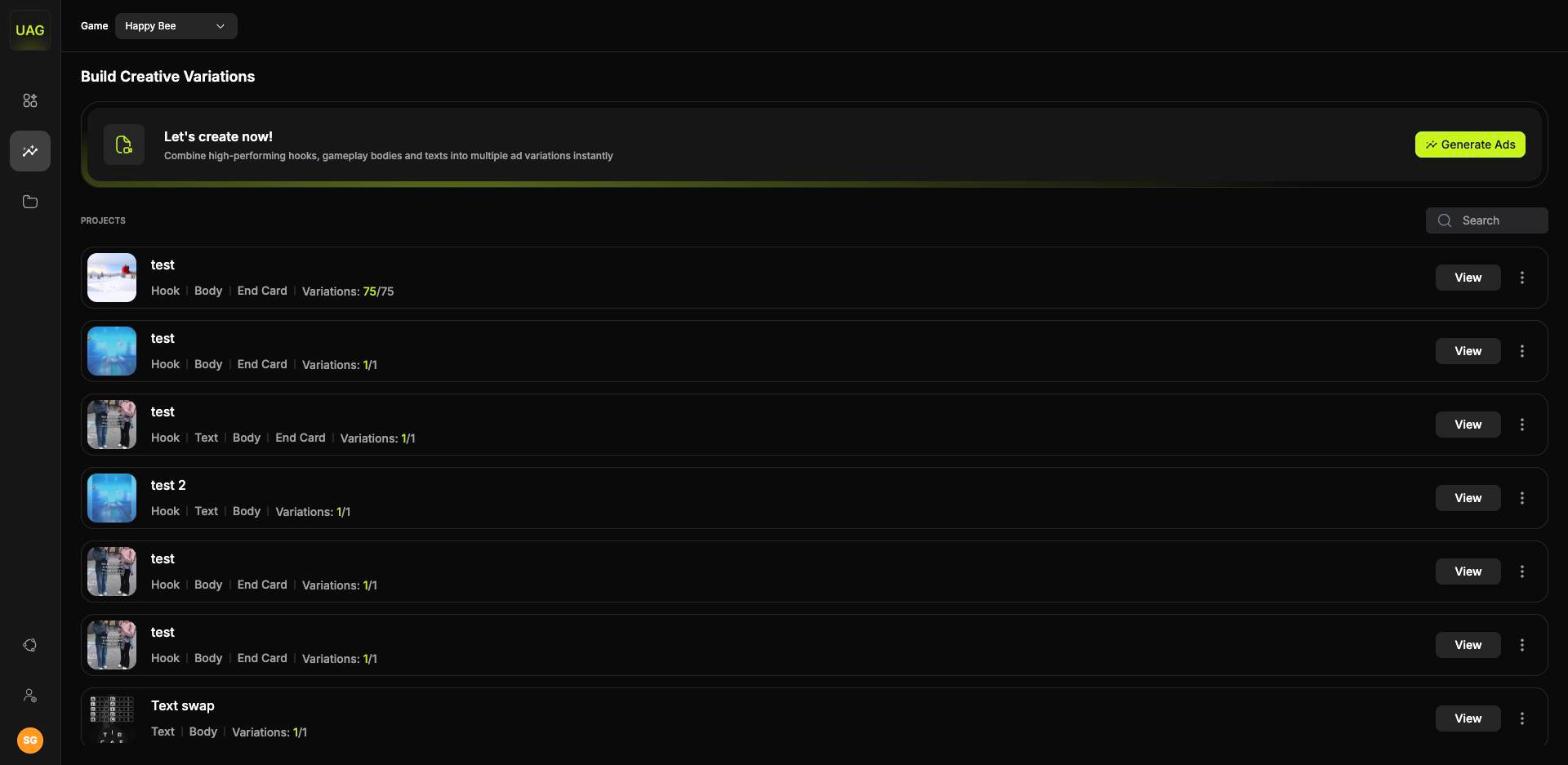
Open it from **Variations** in the main navigation. **Variations** lists your projects, each showing which elements it combines and how many variations it produced, and **Generate Ads** opens the composer.
 ## The composer
The composer is a row of columns, each holding one element of the ad:
**Hook · Hook text | Transitions | Body\* · Body text | End Card | Audio**
## The composer
The composer is a row of columns, each holding one element of the ad:
**Hook · Hook text | Transitions | Body\* · Body text | End Card | Audio**
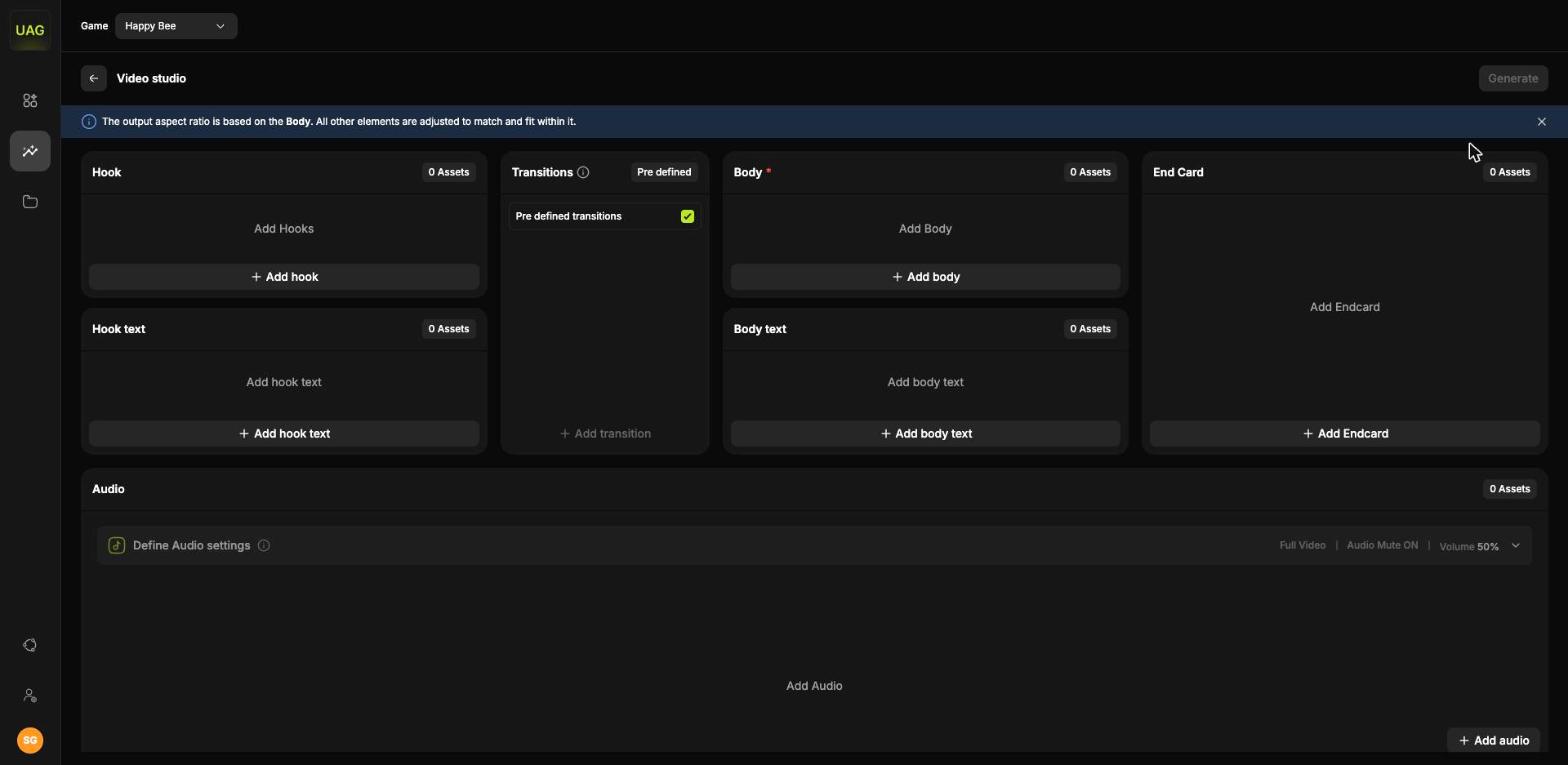 Each column has a picker offering assets from [Competitor Research](/competitor-research), your [Saved assets](/saved-assets) boards, or a direct upload (**Upload own hook**, **Upload own body**, **Upload own audio**). Each column header shows a live asset count.
You can also upload into a board ahead of time, splitting one video into a hook, a body and an end card as you go. See [Uploading your own assets](/saved-assets#uploading-your-own-assets).
## It multiplies
This is the central mechanic. The header recalculates as you select, showing the arithmetic live:
```text theme={null}
2 Hooks × 2 Hook Texts = 4 Videos
```
Every selected hook is paired with every selected hook text, every body, every body text and every audio track. Counts multiply rather than add.
A project renders up to **100** variations. Four hooks, four hook texts, three bodies and two audio tracks reaches 96, so keep an eye on the header count as you select.
Designing the matrix deliberately is what makes the results readable. Testing 3 hooks against 3 texts tells you which hook wins and which text wins from 9 videos. Adding two audio tracks takes it to 18 and introduces a variable you may not have planned to measure.
## Body
The body is the one mandatory element, and it does more than fill the middle of the ad:
The output aspect ratio is based on the body. All other elements are adjusted to match and fit within it.
So the body you pick decides whether the batch is vertical, square or horizontal. A 9:16 hook paired with a square body is fitted to the square.
If you want the same creative in two ratios, run two projects with two bodies.
Bodies come from three places: the competitor library, your own gameplay uploaded with **Upload own body**, or a delivered template. See [Request a body template](/request-body-template) if you want to recreate gameplay rather than use it as it is.
## Text rows
You can put text on the hook and on the body separately, and each has its own **Add text**. Both draw on the same text library, so a line you find can go in either place.
Each text row, hook text and body text, offers three controls.
Set a variation count and select **Generate**. The studio writes that many alternative lines and lists them under the original, so you can branch from a line you like without writing each one yourself.
You stay in control of what gets used. Each variant carries a tick to approve and a cross to discard, and only approved ones join the batch. Discarded ones are gone.
Approved variants inherit the parent's font, size, colour, alignment and placement, so styling your base text first means they arrive already formatted. You cannot edit a variant before approving it, but once approved it becomes a regular text asset you can open in the editor like any other.
If the first round does not land, select **AI variation** again for a fresh set. There is no limit on how many times you can iterate from the same base text.
Each approved line multiplies the batch, so three AI variations of a hook text triples your video count.
**Top**, **Bottom** or **Custom**. Custom opens the full position editor described below.
Top and bottom are reliable defaults, since they stay clear of platform UI in most placements.
Opens the **Edit Text, Position & Style** editor.
## The text editor
**Edit Text, Position & Style** has two tabs and a live preview.
Each column has a picker offering assets from [Competitor Research](/competitor-research), your [Saved assets](/saved-assets) boards, or a direct upload (**Upload own hook**, **Upload own body**, **Upload own audio**). Each column header shows a live asset count.
You can also upload into a board ahead of time, splitting one video into a hook, a body and an end card as you go. See [Uploading your own assets](/saved-assets#uploading-your-own-assets).
## It multiplies
This is the central mechanic. The header recalculates as you select, showing the arithmetic live:
```text theme={null}
2 Hooks × 2 Hook Texts = 4 Videos
```
Every selected hook is paired with every selected hook text, every body, every body text and every audio track. Counts multiply rather than add.
A project renders up to **100** variations. Four hooks, four hook texts, three bodies and two audio tracks reaches 96, so keep an eye on the header count as you select.
Designing the matrix deliberately is what makes the results readable. Testing 3 hooks against 3 texts tells you which hook wins and which text wins from 9 videos. Adding two audio tracks takes it to 18 and introduces a variable you may not have planned to measure.
## Body
The body is the one mandatory element, and it does more than fill the middle of the ad:
The output aspect ratio is based on the body. All other elements are adjusted to match and fit within it.
So the body you pick decides whether the batch is vertical, square or horizontal. A 9:16 hook paired with a square body is fitted to the square.
If you want the same creative in two ratios, run two projects with two bodies.
Bodies come from three places: the competitor library, your own gameplay uploaded with **Upload own body**, or a delivered template. See [Request a body template](/request-body-template) if you want to recreate gameplay rather than use it as it is.
## Text rows
You can put text on the hook and on the body separately, and each has its own **Add text**. Both draw on the same text library, so a line you find can go in either place.
Each text row, hook text and body text, offers three controls.
Set a variation count and select **Generate**. The studio writes that many alternative lines and lists them under the original, so you can branch from a line you like without writing each one yourself.
You stay in control of what gets used. Each variant carries a tick to approve and a cross to discard, and only approved ones join the batch. Discarded ones are gone.
Approved variants inherit the parent's font, size, colour, alignment and placement, so styling your base text first means they arrive already formatted. You cannot edit a variant before approving it, but once approved it becomes a regular text asset you can open in the editor like any other.
If the first round does not land, select **AI variation** again for a fresh set. There is no limit on how many times you can iterate from the same base text.
Each approved line multiplies the batch, so three AI variations of a hook text triples your video count.
**Top**, **Bottom** or **Custom**. Custom opens the full position editor described below.
Top and bottom are reliable defaults, since they stay clear of platform UI in most placements.
Opens the **Edit Text, Position & Style** editor.
## The text editor
**Edit Text, Position & Style** has two tabs and a live preview.
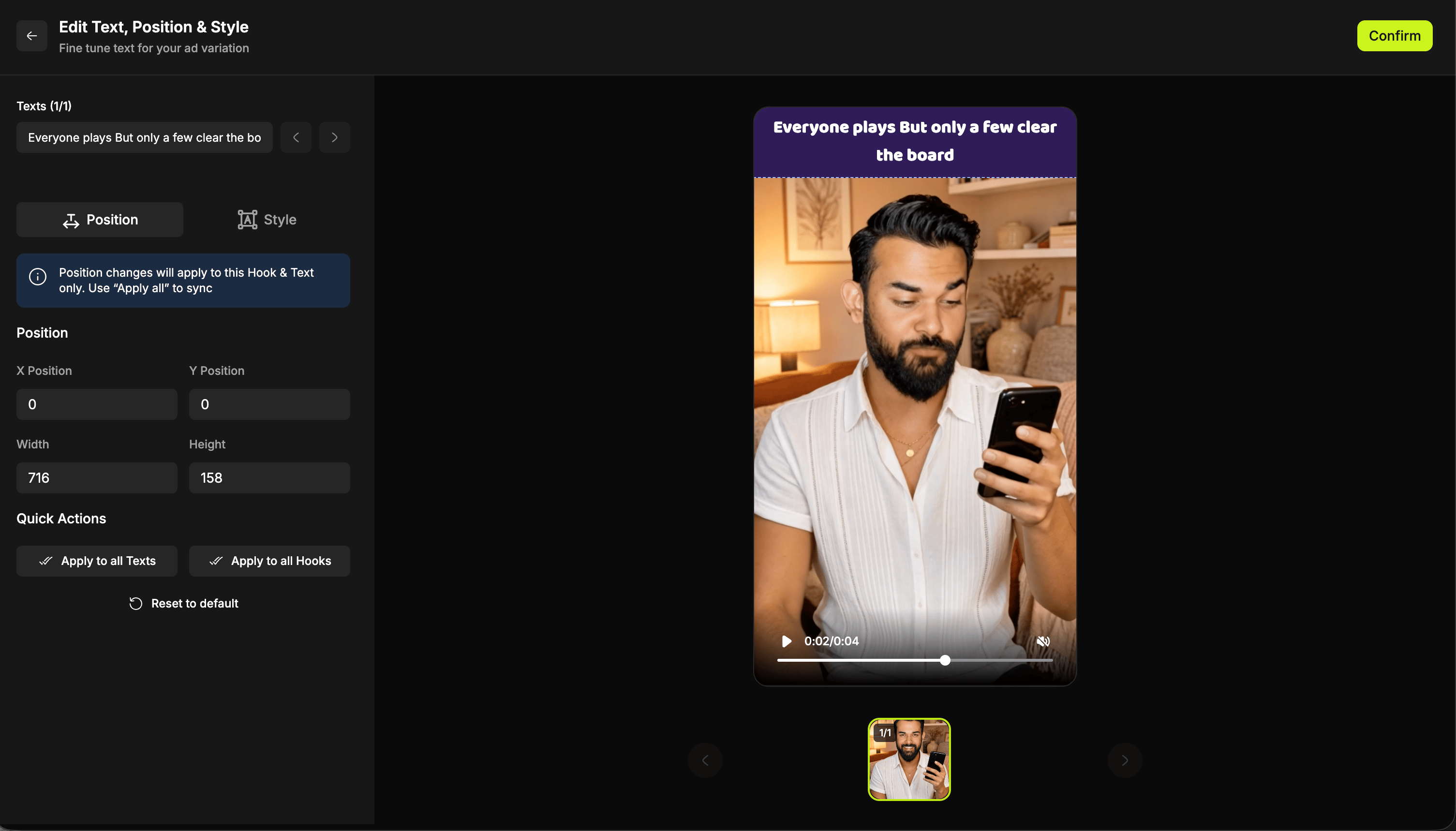 Numeric **X**, **Y**, **Width** and **Height**.
Use this when you want copy to sit clear of something in the footage, such as a HUD element, a character or a logo.
Numeric **X**, **Y**, **Width** and **Height**.
Use this when you want copy to sit clear of something in the footage, such as a HUD element, a character or a logo.
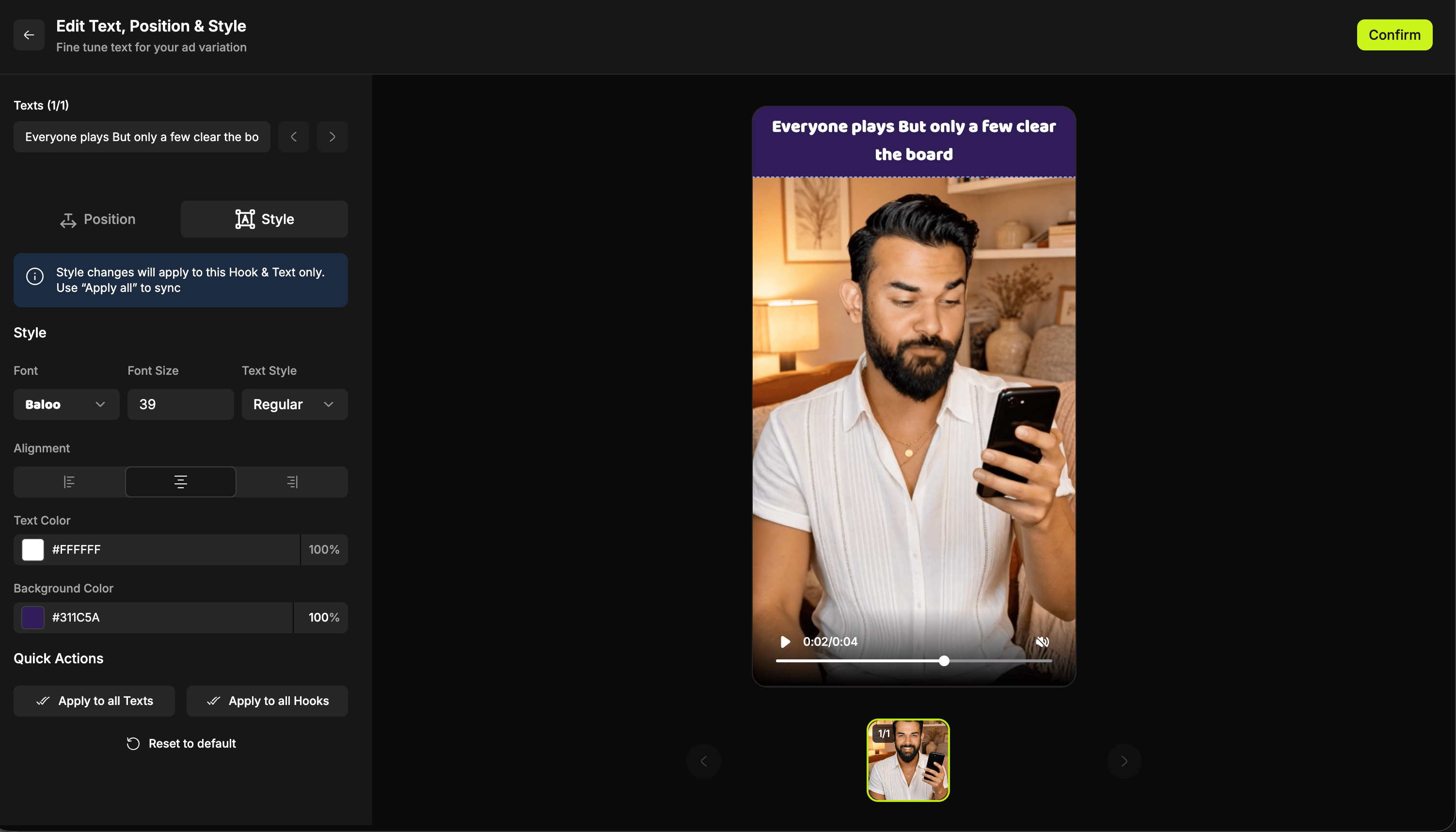 * **Font**
* **Font size**
* **Text style**
* **Alignment**
* **Text colour**, with an opacity control
* **Background colour**, with an opacity control
A semi-transparent background behind the text is the dependable way to keep copy legible over busy gameplay.
The preview includes a per-hook thumbnail carousel, so you can step through every hook in the batch and confirm the text sits well on each one before rendering. Text that lands perfectly on hook one may want nudging on hook three, and this carousel is where you see that.
### Quick actions
By default, a style or position change applies only to that one combination of body and text. Three buttons are how you spread it wider:
| Action | Effect |
| ----------------------- | --------------------------------------------------------------------- |
| **Apply to all Texts** | Pushes this styling to every text asset on the same body. |
| **Apply to all Bodies** | Pushes this styling and position for the same text across all bodies. |
| **Reset to default** | Returns this text to the default treatment. |
Style one text exactly right, then **Apply to all Texts**. It is the single biggest time saver in the composer.
If a text asset has mixed styling, with different fonts, sizes or colours on different words, **Apply to all** carries everything across except those font properties. Position and background still apply, so it is worth restyling the odd one by hand.
### Style parts of a line differently
Select any portion of the text and give it its own font, size or colour, so a single line can carry emphasis exactly where you want it. Making the first two words bold and coloured while the rest stays plain is the common use, and there is no limit on how far you take it.
## Transitions
Transitions are set to **Pre defined** by default. UAGenius maps a transition to each hook based on how it has been used historically, so a sensible choice is already in place before you touch anything.
Clearing the **Pre defined transitions** tick is what enables **Add transition**, so you opt out of the automatic mapping before choosing your own. That opens the eleven options:
* **Font**
* **Font size**
* **Text style**
* **Alignment**
* **Text colour**, with an opacity control
* **Background colour**, with an opacity control
A semi-transparent background behind the text is the dependable way to keep copy legible over busy gameplay.
The preview includes a per-hook thumbnail carousel, so you can step through every hook in the batch and confirm the text sits well on each one before rendering. Text that lands perfectly on hook one may want nudging on hook three, and this carousel is where you see that.
### Quick actions
By default, a style or position change applies only to that one combination of body and text. Three buttons are how you spread it wider:
| Action | Effect |
| ----------------------- | --------------------------------------------------------------------- |
| **Apply to all Texts** | Pushes this styling to every text asset on the same body. |
| **Apply to all Bodies** | Pushes this styling and position for the same text across all bodies. |
| **Reset to default** | Returns this text to the default treatment. |
Style one text exactly right, then **Apply to all Texts**. It is the single biggest time saver in the composer.
If a text asset has mixed styling, with different fonts, sizes or colours on different words, **Apply to all** carries everything across except those font properties. Position and background still apply, so it is worth restyling the odd one by hand.
### Style parts of a line differently
Select any portion of the text and give it its own font, size or colour, so a single line can carry emphasis exactly where you want it. Making the first two words bold and coloured while the rest stays plain is the common use, and there is no limit on how far you take it.
## Transitions
Transitions are set to **Pre defined** by default. UAGenius maps a transition to each hook based on how it has been used historically, so a sensible choice is already in place before you touch anything.
Clearing the **Pre defined transitions** tick is what enables **Add transition**, so you opt out of the automatic mapping before choosing your own. That opens the eleven options:
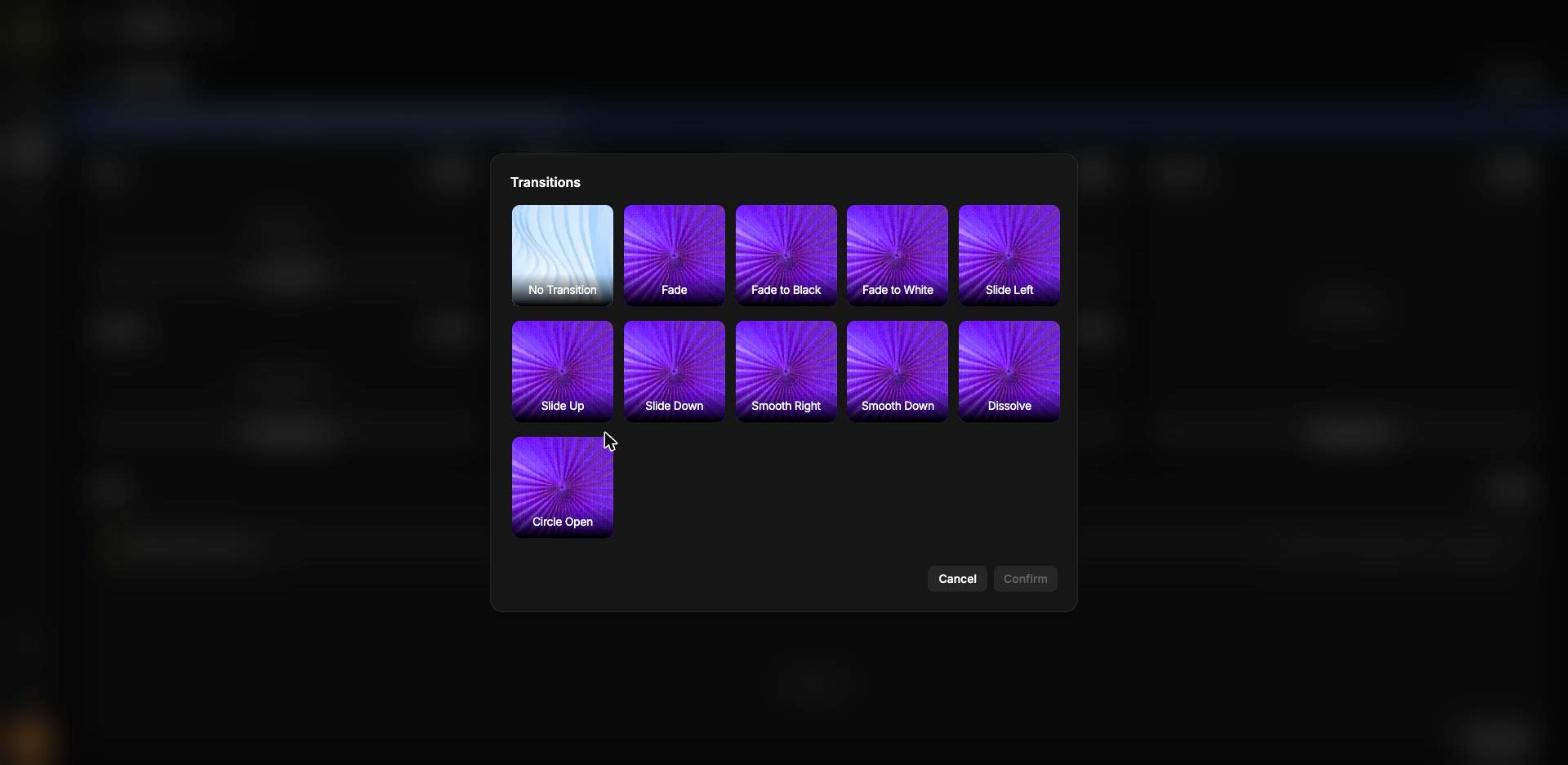 | Group | Options |
| ------------------- | ---------------------------------- |
| **Straight cut** | No Transition |
| **Fades** | Fade, Fade to Black, Fade to White |
| **Slides** | Slide Left, Slide Up, Slide Down |
| **Smooth moves** | Smooth Right, Smooth Down |
| **Everything else** | Dissolve, Circle Open |
Transitions apply at the **hook to body** join. The cut between body and end card is not affected.
Each transition you select becomes a separate variation, so transitions multiply the batch in the same way hooks and texts do. Factor them into your 100 count.
## Adding custom text
**Add Text** creates copy that is not derived from an existing asset. The modal offers:
* **Font**: Inter, Lato, Montserrat, Metra Serif, Mytupi, Roboto, Rodona and more
* **Text style** and **Alignment**
* **Text** and **Background** colours, each with opacity
* **Save asset for reuse**, which stores the text as an asset on one of your boards
Save anything you expect to use again. A tested set of hook lines becomes a reusable board you pull from every cycle.
## Audio settings
Hover any track to preview it before you select it.
Once chosen, audio is configured per project and every variation in the batch inherits the same settings:
| Group | Options |
| ------------------- | ---------------------------------- |
| **Straight cut** | No Transition |
| **Fades** | Fade, Fade to Black, Fade to White |
| **Slides** | Slide Left, Slide Up, Slide Down |
| **Smooth moves** | Smooth Right, Smooth Down |
| **Everything else** | Dissolve, Circle Open |
Transitions apply at the **hook to body** join. The cut between body and end card is not affected.
Each transition you select becomes a separate variation, so transitions multiply the batch in the same way hooks and texts do. Factor them into your 100 count.
## Adding custom text
**Add Text** creates copy that is not derived from an existing asset. The modal offers:
* **Font**: Inter, Lato, Montserrat, Metra Serif, Mytupi, Roboto, Rodona and more
* **Text style** and **Alignment**
* **Text** and **Background** colours, each with opacity
* **Save asset for reuse**, which stores the text as an asset on one of your boards
Save anything you expect to use again. A tested set of hook lines becomes a reusable board you pull from every cycle.
## Audio settings
Hover any track to preview it before you select it.
Once chosen, audio is configured per project and every variation in the batch inherits the same settings:
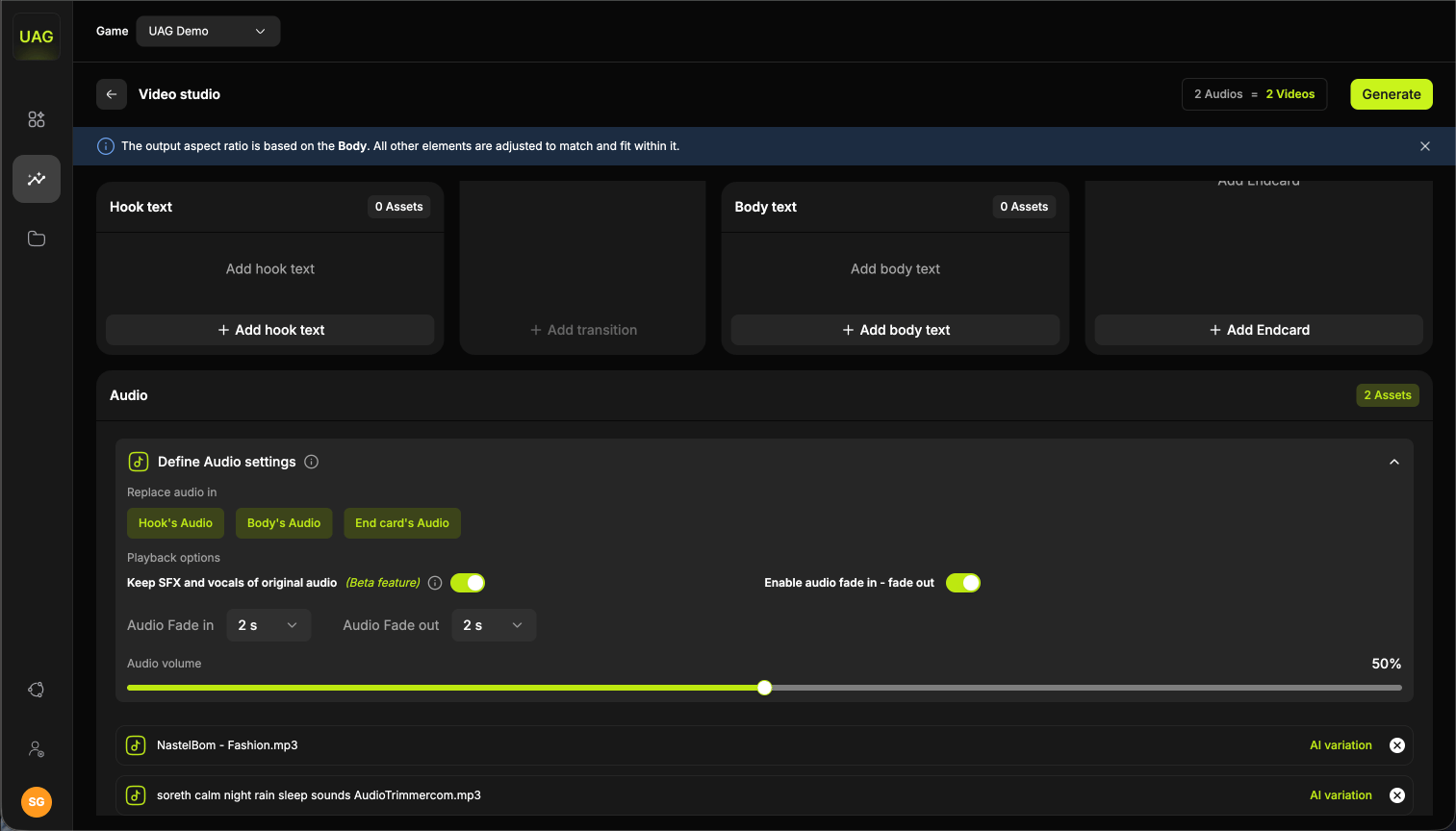 * **Replace audio in**, choosing where the track plays. By default it runs across the full video, or you can limit it to the **hook**, the **body**, the **end card**, or a combination such as hook and body.
* **Keep SFX and vocals of original audio** *(Beta)*, which layers your track over the original's sound effects and voices instead of replacing them. Without it, the original audio is muted.
* **Audio fade in and out**, for a smooth start and finish rather than a hard cut.
* **Volume**, a slider for the replacement track's level.
### AI audio variations
* **Replace audio in**, choosing where the track plays. By default it runs across the full video, or you can limit it to the **hook**, the **body**, the **end card**, or a combination such as hook and body.
* **Keep SFX and vocals of original audio** *(Beta)*, which layers your track over the original's sound effects and voices instead of replacing them. Without it, the original audio is muted.
* **Audio fade in and out**, for a smooth start and finish rather than a hard cut.
* **Volume**, a slider for the replacement track's level.
### AI audio variations
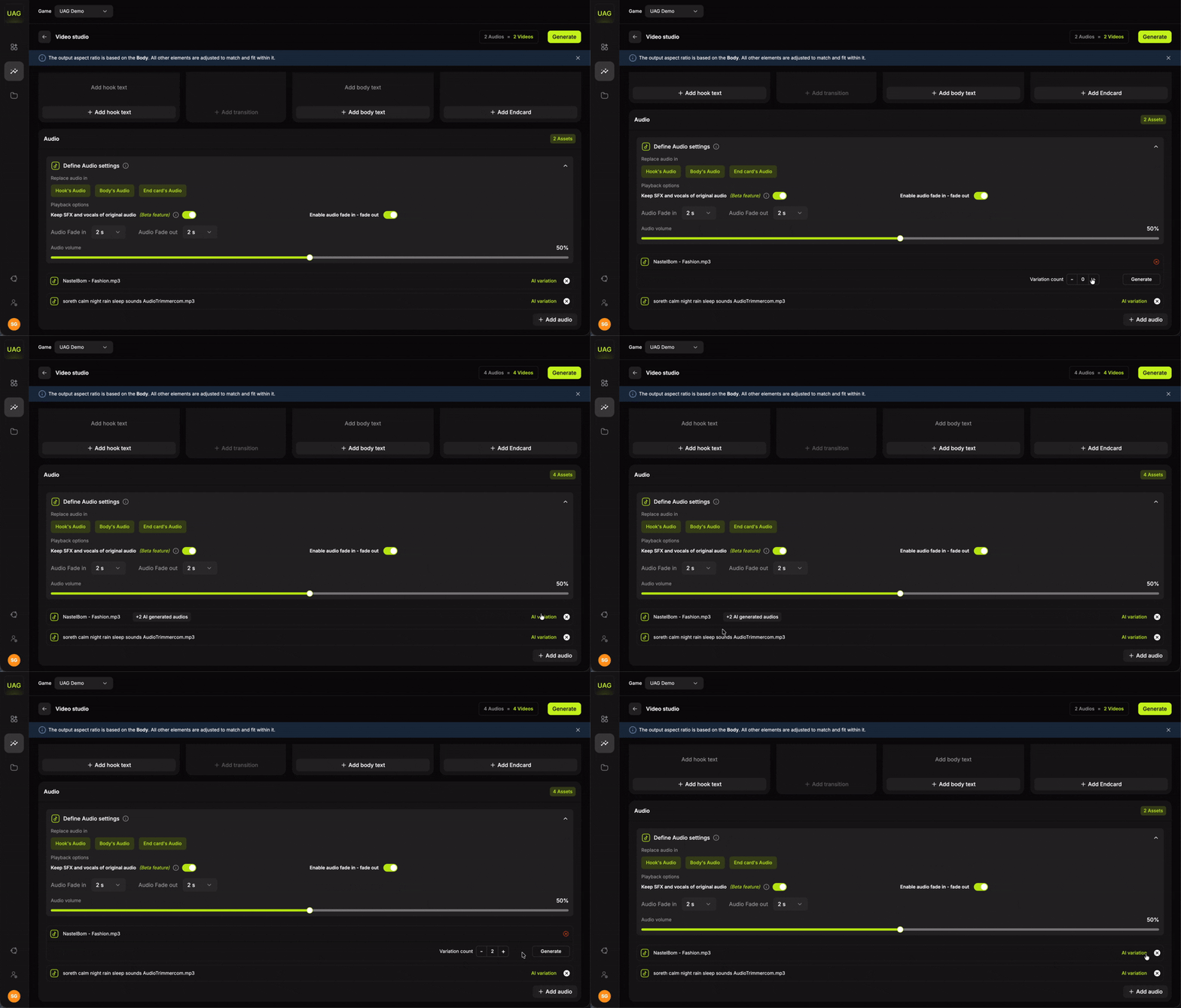 Select **AI variation** on any track, set how many versions you want, and generate. The versions are managed in the same row as the original, and the count on that row updates to include them.
To reduce or remove them, select **AI variation** on the same track again and set the counter down. Setting it to zero removes the AI versions and leaves the original in place.
Audio variations work differently from text. There is no preview or approve step, because an audio variation only exists once it is generated, so all of them join the batch automatically. Each one counts toward your 100 variation cap.
## Name the project and choose where it saves
Before anything renders, give the project a name and choose the folder in [Projects](/projects) that its variations will save into. You can pick an existing folder or create a new one here.
Saving triggers generation, so your batch is queued the moment you are done.
## Track progress
Progress is shown on the Video Studio home page as a bar moving from 0% to 100%. You do not need to stay on the page while it runs.
Several batches can generate at once, so you can start another composition while the first is still rendering and track them all from the same list.
Because batches queue in parallel, the efficient rhythm is to set up two or three compositions back to back and let them run together, rather than waiting on each one.
## Results
When rendering finishes, the project opens on its results view, headed `Variations (n/n)`.
From here you can:
Select **AI variation** on any track, set how many versions you want, and generate. The versions are managed in the same row as the original, and the count on that row updates to include them.
To reduce or remove them, select **AI variation** on the same track again and set the counter down. Setting it to zero removes the AI versions and leaves the original in place.
Audio variations work differently from text. There is no preview or approve step, because an audio variation only exists once it is generated, so all of them join the batch automatically. Each one counts toward your 100 variation cap.
## Name the project and choose where it saves
Before anything renders, give the project a name and choose the folder in [Projects](/projects) that its variations will save into. You can pick an existing folder or create a new one here.
Saving triggers generation, so your batch is queued the moment you are done.
## Track progress
Progress is shown on the Video Studio home page as a bar moving from 0% to 100%. You do not need to stay on the page while it runs.
Several batches can generate at once, so you can start another composition while the first is still rendering and track them all from the same list.
Because batches queue in parallel, the efficient rhythm is to set up two or three compositions back to back and let them run together, rather than waiting on each one.
## Results
When rendering finishes, the project opens on its results view, headed `Variations (n/n)`.
From here you can:
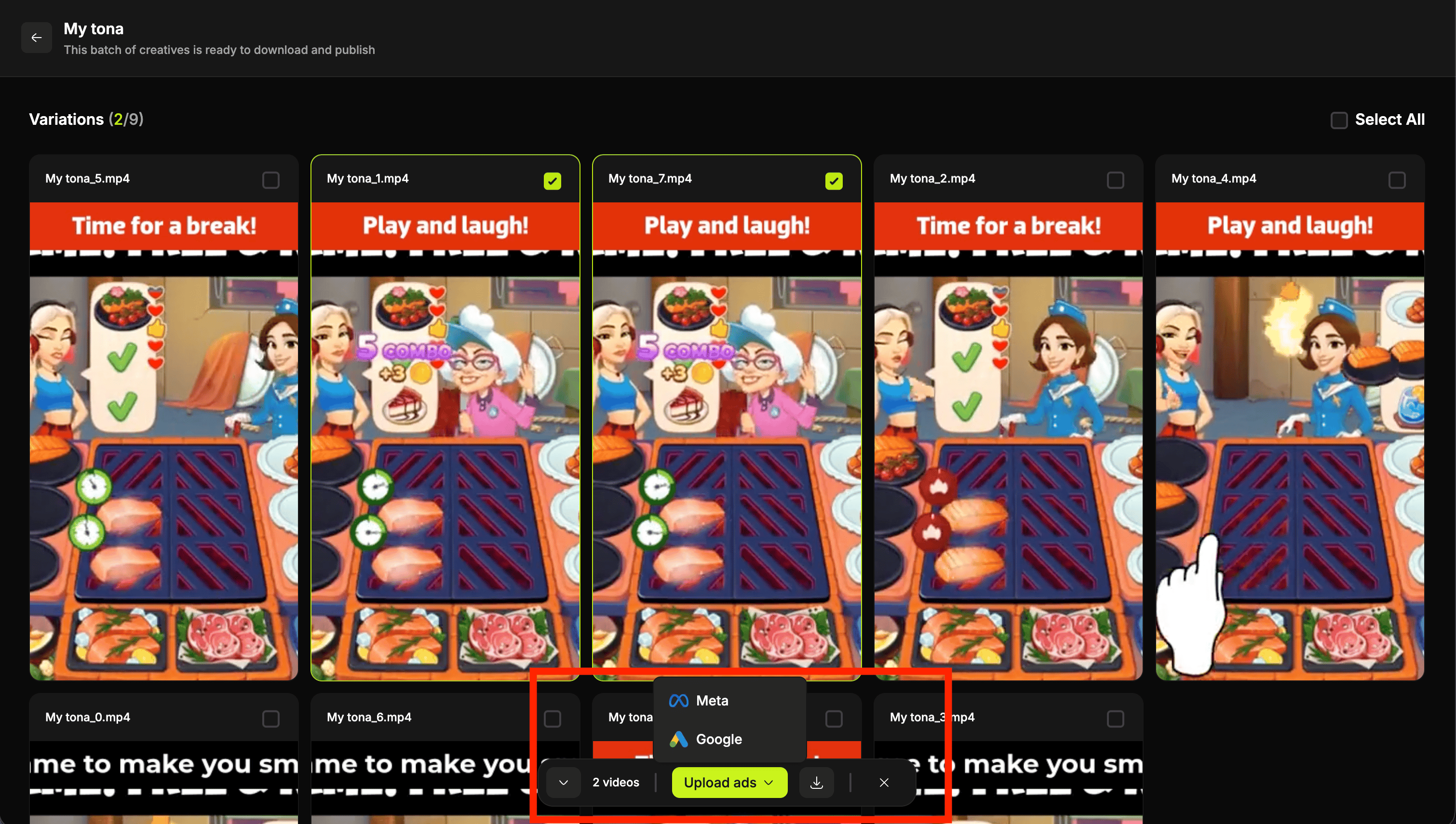 * Review each variation individually
* **Select All**, then **Upload ads** to [Meta](/publish-meta) or [Google](/publish-google)
* Download the batch
The project's **⋮** menu offers **Rename**, **Download** and **Delete**.
Variations also save automatically to the folder you chose in [Projects](/projects), so the batch outlives the project.
Video Studio confirms before you navigate away from a composition in progress. If your browser asks whether you want to leave, stay on the page to keep your selections.
## A worked example
You have three recreated hooks, one delivered body template and a set of hook lines to test.
It sets the aspect ratio for everything else, so choose the 9:16 template.
The header now reads `3 Videos`.
Position it, style it, and check it against all three hooks in the preview carousel.
They inherit the styling. The header reads `3 Hooks × 4 Hook Texts = 12 Videos`.
One variable per test. Render the 12, ship them, and you will know which hook and which line won.
* Review each variation individually
* **Select All**, then **Upload ads** to [Meta](/publish-meta) or [Google](/publish-google)
* Download the batch
The project's **⋮** menu offers **Rename**, **Download** and **Delete**.
Variations also save automatically to the folder you chose in [Projects](/projects), so the batch outlives the project.
Video Studio confirms before you navigate away from a composition in progress. If your browser asks whether you want to leave, stay on the page to keep your selections.
## A worked example
You have three recreated hooks, one delivered body template and a set of hook lines to test.
It sets the aspect ratio for everything else, so choose the 9:16 template.
The header now reads `3 Videos`.
Position it, style it, and check it against all three hooks in the preview carousel.
They inherit the styling. The header reads `3 Hooks × 4 Hook Texts = 12 Videos`.
One variable per test. Render the 12, ship them, and you will know which hook and which line won.