Every ad network draws its own interface over your video, and each one puts it in a different place. Safe zones lay that interface over your clip in the text editor, so you can see what will cover your text and move it clear before anything is generated.
What it is
Captions, like and share buttons, a CTA or install bar, a progress bar: each network places these differently, and differently again for each aspect ratio. There is no single “safe” area that works everywhere. A safe zone draws that interface directly over your clip. The space it leaves free is the space your text can use.A safe zone works like a ruler. It helps you place text, but it never changes your output.
Where to find it
Safe zones live on the Position tab of the text editor in Video Studio. There are two ways in:- Check: when a Hook text or Body text panel holds both texts and clips, its first row reads
Check the platform safe zone in the editor.Select Check to open the editor on the Position tab. - Custom position: in a text row’s position picker, choose Custom. This also opens the Position tab.
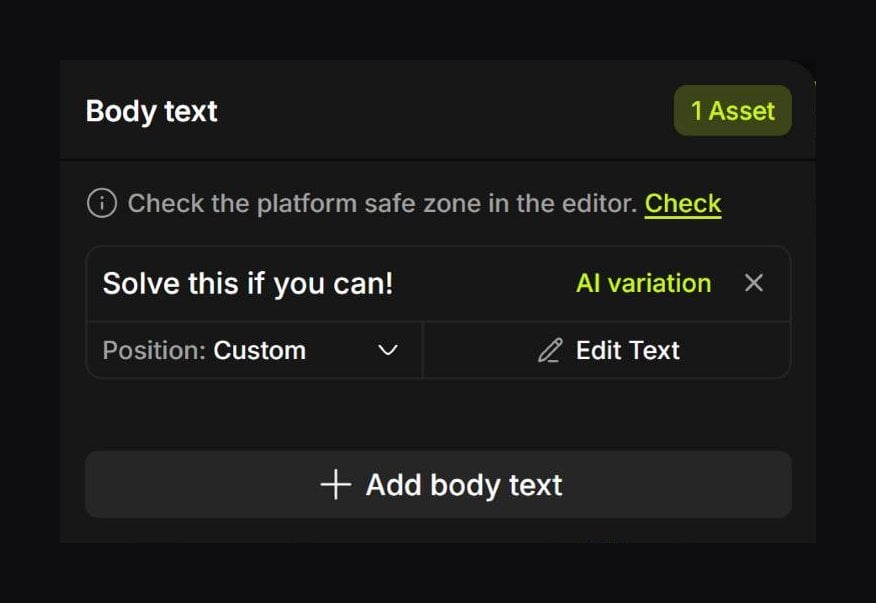
The Check note only appears when the panel has both texts and clips, because a text with no clip under it has nothing to check against. Edit Text opens the Style tab, which has no safe zone.
Pick a platform
Under Platform safe zone, choose one platform. Its UI is drawn over the clip and on top of your text, so any overlap shows straight away. Select the chosen platform again to hide the overlay.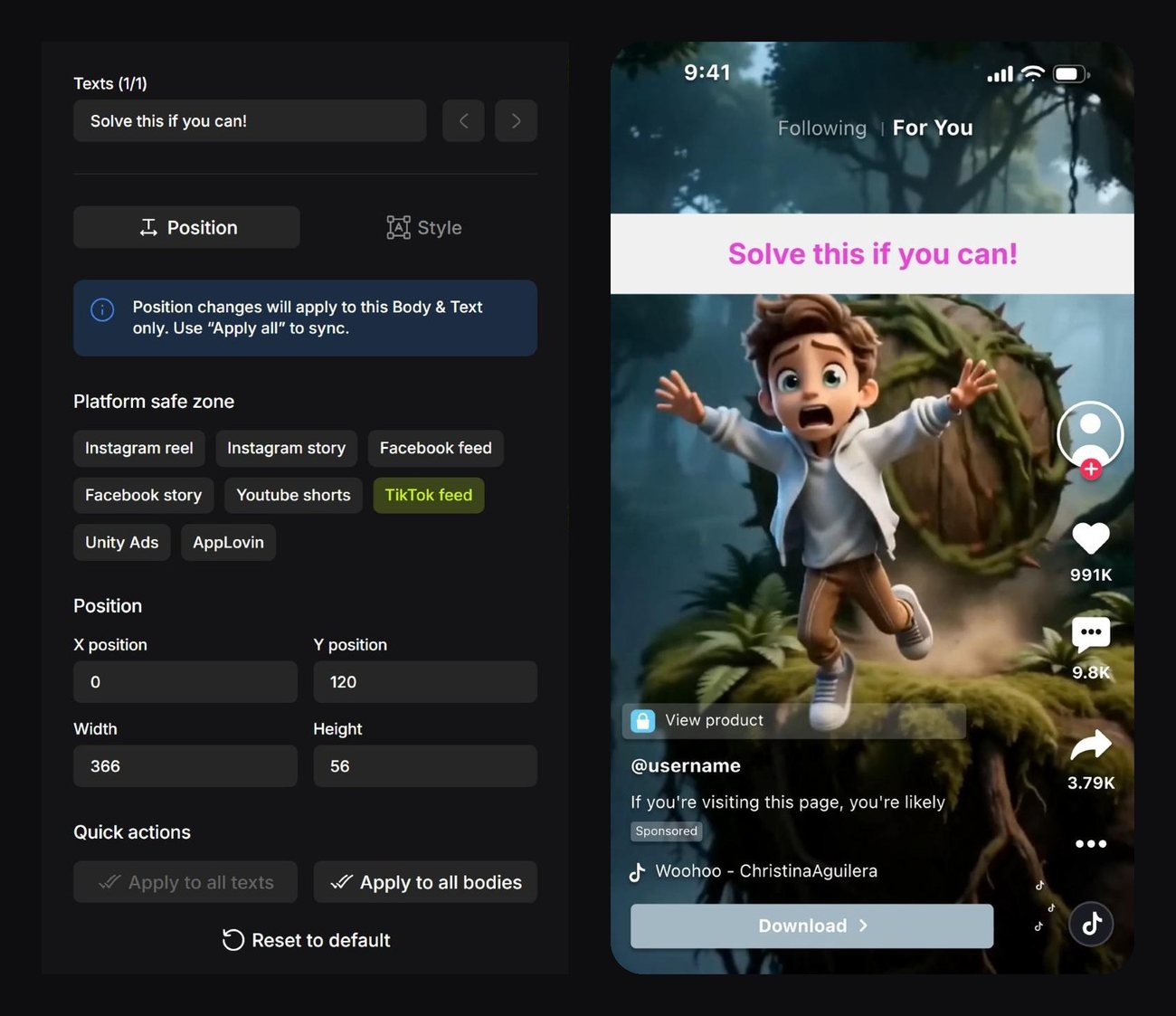
Move your text clear
Drag the text away from the platform’s UI, or type new X and Y values under Position. The overlay never blocks your cursor, so you can drag straight through it. Before: the line sits under TikTok’s top bar, with the status bar running through it.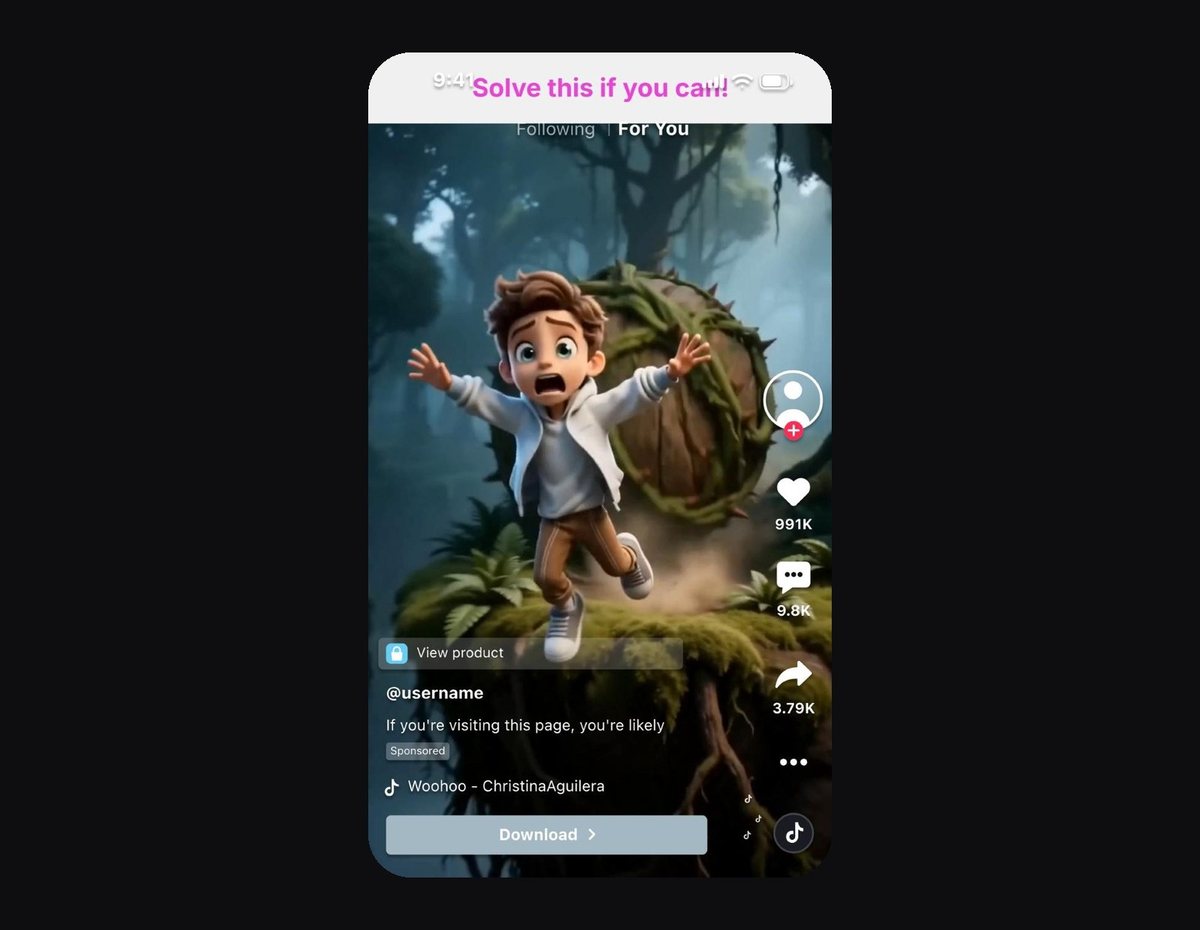
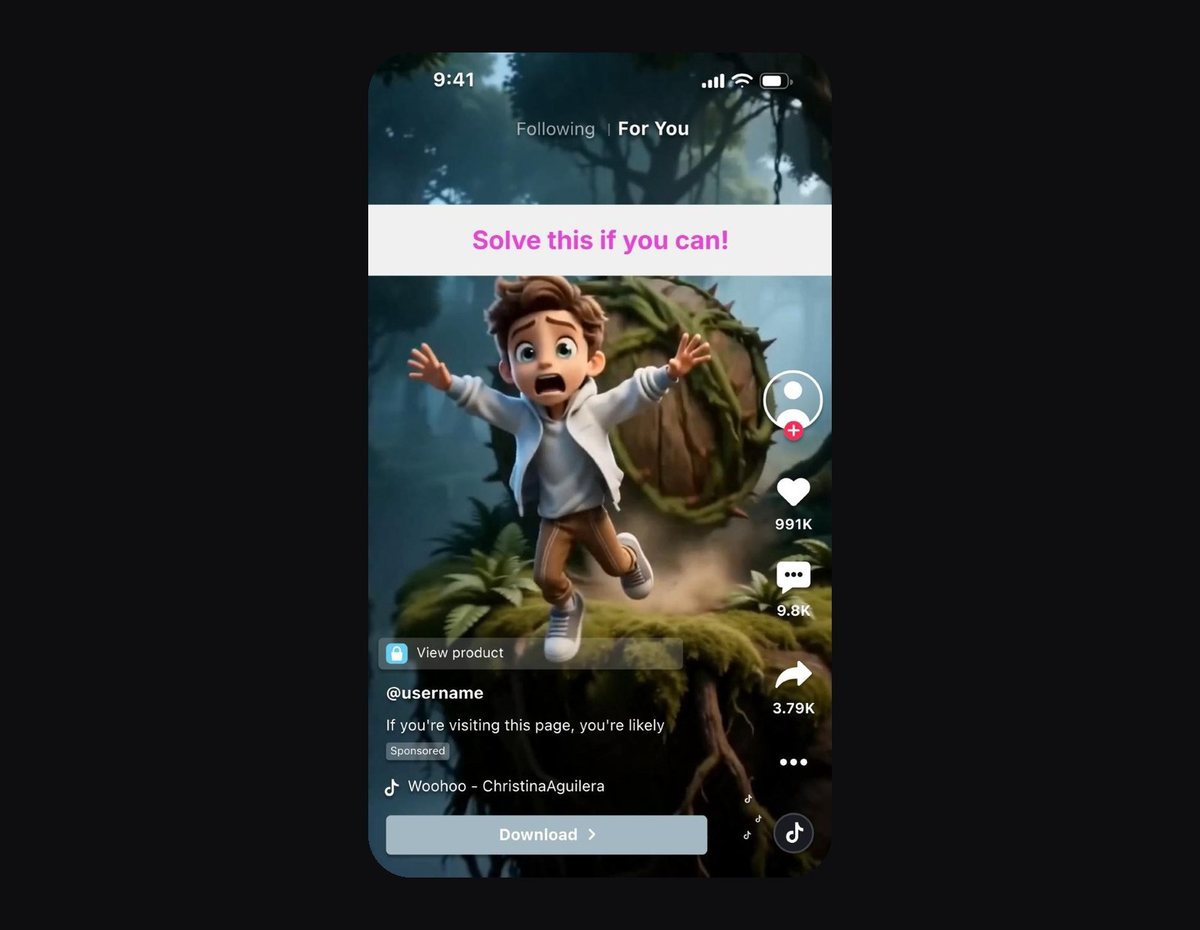
Check against every network you plan to publish on. Each one places its UI differently, so text that is clear on TikTok can still clash with Instagram’s caption.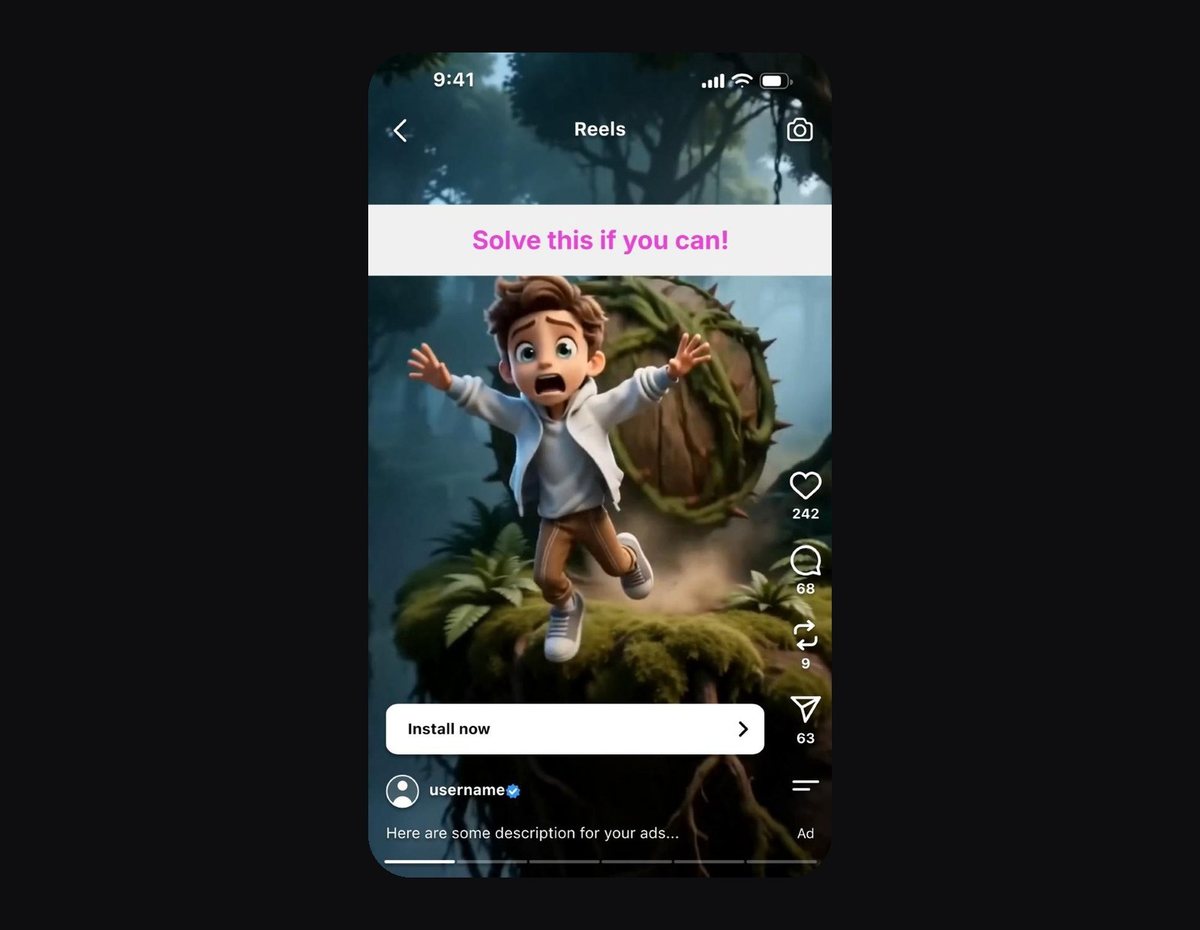
Save or discard
The platform you pick is not saved and has no effect on your generated ads. It is only there to help you place the text.
Supported aspect ratios
Why is a platform greyed out?
Unavailable options stay visible but disabled, with a tooltip explaining why.If you step to a clip the selected platform does not cover, the platform stays selected but nothing is drawn. Step back and the overlay returns.
A worked example
You have two 9:16 bodies and two body texts, and you plan to run on TikTok and Instagram.1
Open the editor from the Body text panel
In Video Studio, add the two bodies and the two body texts, then select Check in the Body text panel.
2
Pick TikTok feed
Under Platform safe zone, pick TikTok feed. The headline sits under TikTok’s top bar.
3
Move the text clear
Set the Y position lower until the text is clear, then step through both clips to confirm.
4
Check the next network
Switch to Instagram reel and check again.
5
Confirm and generate
Select Confirm, then generate your variations. The overlay does not appear in any of them.