
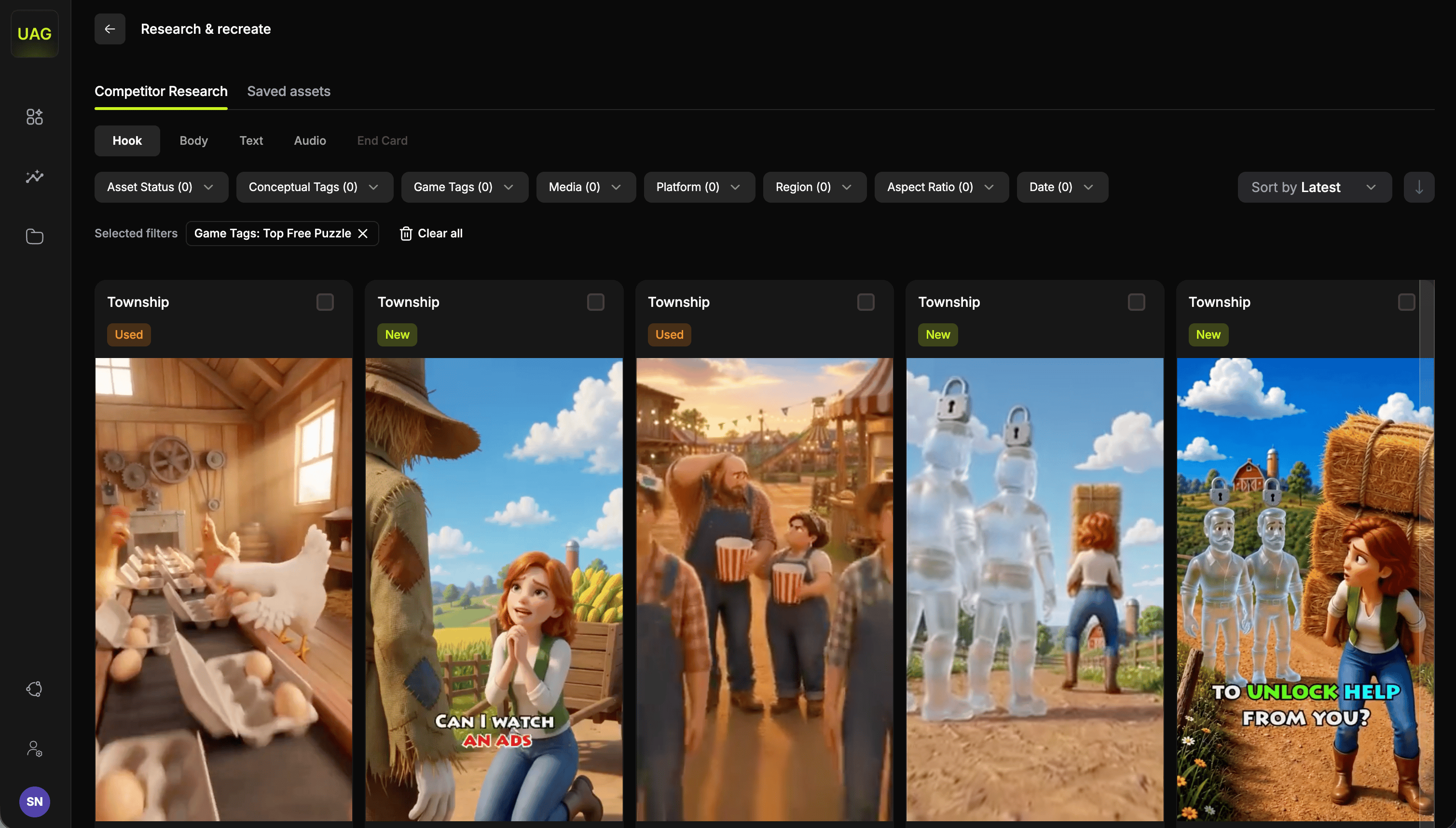
Every section shares the same card signals and the same filter and sort controls, with Hook carrying the fullest set. Working with each section at the end of this page covers what is specific to each.
End cards are the one asset type you bring yourself. Upload your own into a board under Saved assets, then add them as a column in Video Studio.
Filters
The Hook tab carries the full set, and other tabs show the subset that applies to them.Asset status
Asset status
Tracks what your team has already done with each ad, so two people can work in parallel without covering the same ground.
- Recreated Hooks, already recreated assets. Drills down by the user who did it.
- New Hooks, ones nobody on your team has picked up yet to create variations.
- Used Hooks, already used in a variation.
Media
Media
Where the ad was seen, in two groups:
- Social Media Platforms: Facebook, Messenger, Instagram, Threads, YouTube
- Ad Networks
Platform
Platform
Android or iOS. Useful when your creative strategy or store assets differ between the two.
Region
Region
Narrows by continent, then by country within it. Use it to confirm that an ad you like is running in the markets you actually buy in.
Aspect ratio
Aspect ratio
- Vertical: 9:16, 4:5, 2:3, 3:4, 5:6
- Horizontal
- Square
Date
Date
Last 7, 30, 180 or 365 days, or All time.Last 7 days is your new-creative feed. All time is your reference library of proven concepts.
Sort by
Sort by
- Latest, newest first
- Impression, most shown first
- Active days, longest running first
Reading a card
Each result is a card with inline video playback, so you can watch without leaving the grid. The card also shows: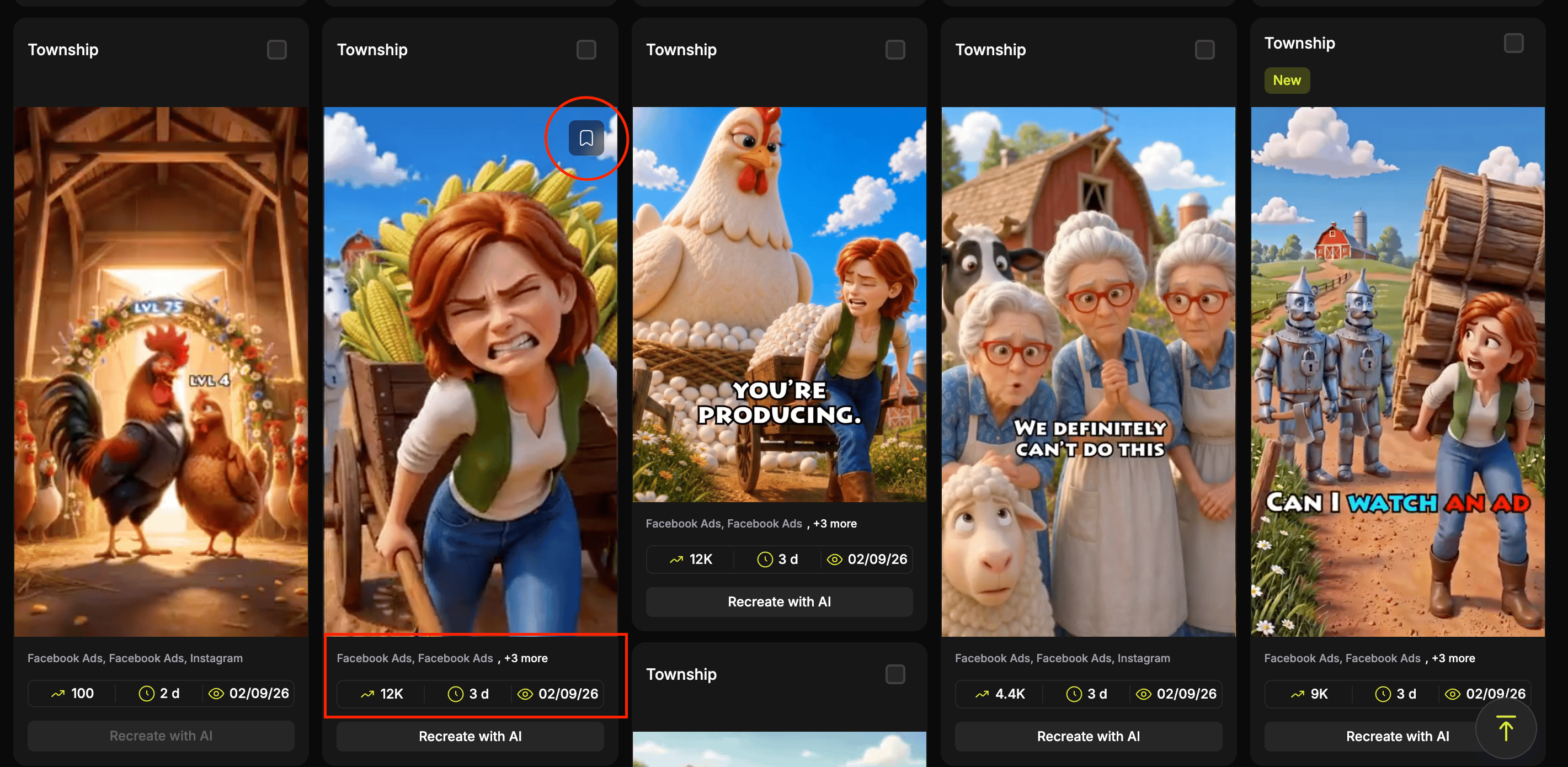
Acting on a card
Once you have found something worth using, the card itself is where you start:Working in bulk
Selecting more than one card reveals an action bar: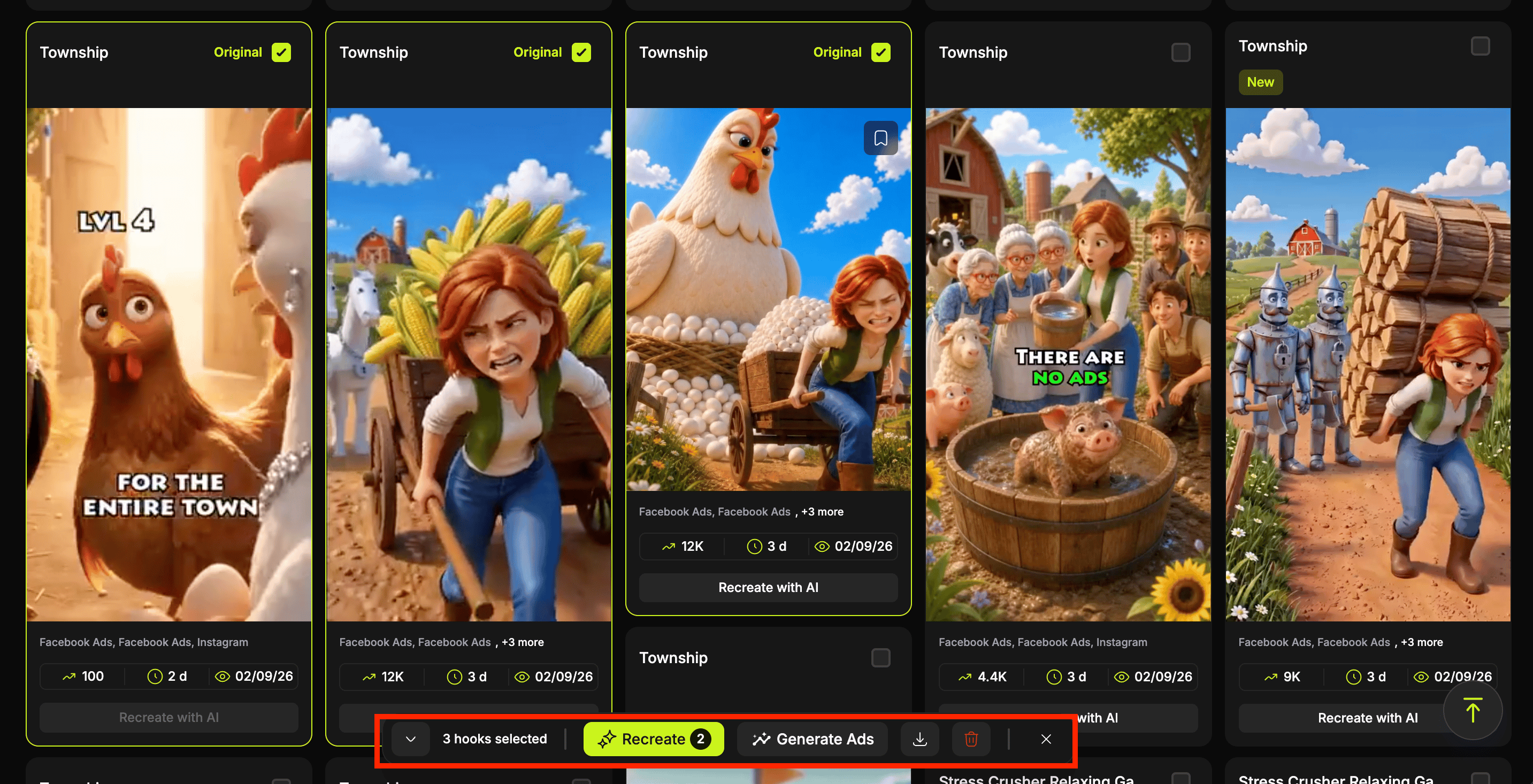
- Recreate, recreate the whole selection in one go
- Generate Ads, take the selection into Video Studio and start composing
- Download, pull the original files down
- Delete, remove the recreated assets from the console.(original videos will not be affected)
- Clear selection, cancels the selection
Recreating in bulk
Recreate is the action worth knowing about, because it turns a research session into a set of your own assets in one pass.1
Select what you want
Tick every asset you want your own version of.
2
Select Recreate
Any exceptions in your selection are listed before anything runs, so you can see exactly what will be included and what will not. Bulk recreation covers original hooks under 30 seconds, and anything else in your selection is named with its reason.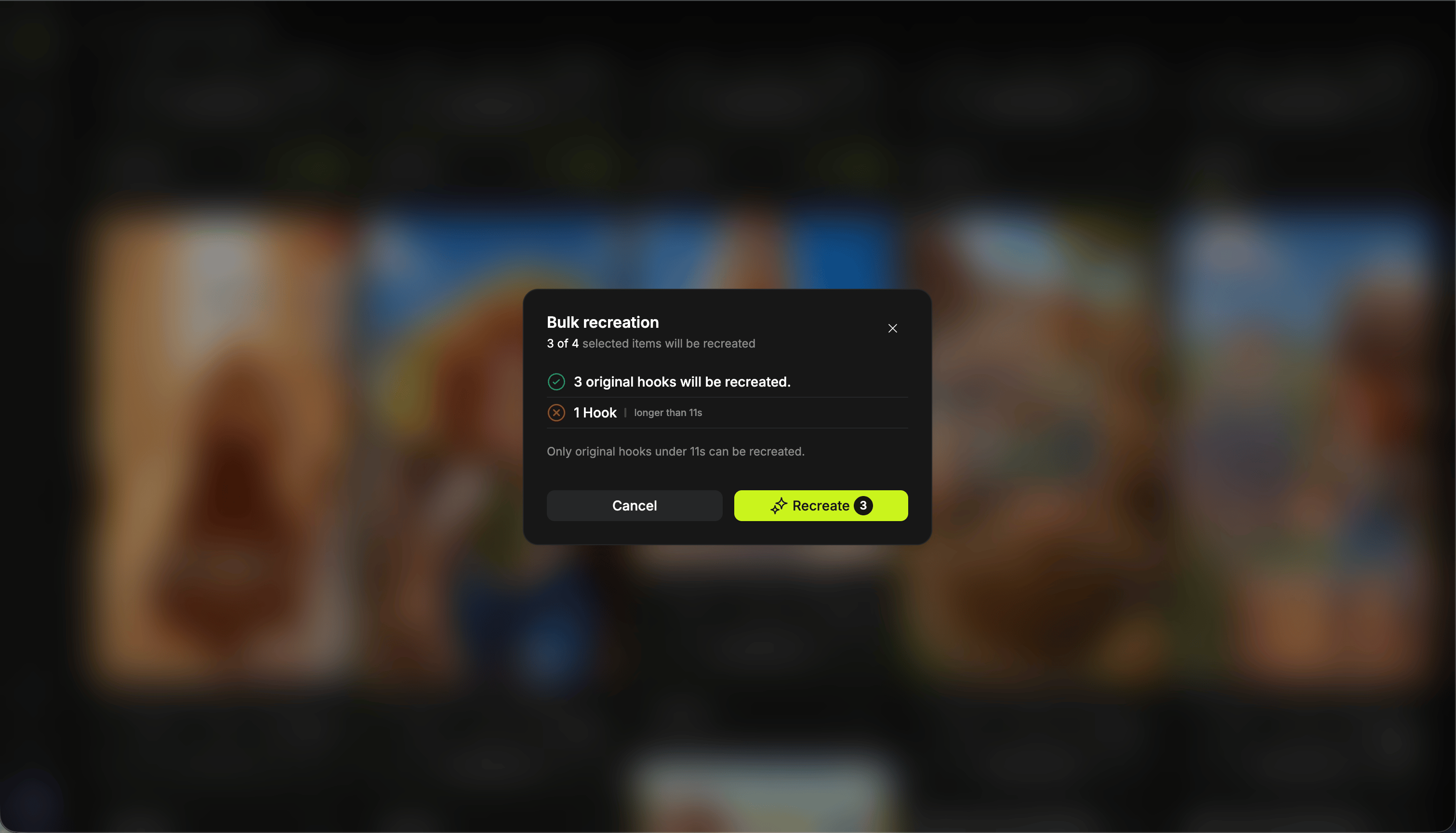
3
Confirm
Everything remaining is recreated in a single click. There is no need to set each asset up one by one.
Building a batch from research
You do not have to pick everything from one place. Move between the Hook, Body, Text and Audio sections, selecting what you want as you go, and your picks are held across all of them. When you have your ingredients, select Generate Ads. You land in Video Studio with everything you chose already placed in its columns, ready to render every combination.Saved assets
Bookmarking an asset sends it to a board under the Saved assets tab, the second tab on this screen. Boards are also where you upload your own footage into the library, splitting a single video into a hook, a body and an end card as you go. See Saved assets for boards and the upload flow.Working with each section
The four sections behave the same way in most respects. The differences below are what is worth knowing when you are working in each one.Hook
The opening seconds of competitor ads, and the section most cycles start in. Recreate with AI is available directly on a hook card, so you can go from spotting one to owning your own version with no intermediate step. Sort by Active days to surface the hooks that have earned their place in the market. Once you set a recreation as final in the studio, the card carries a recreations tag. Selecting it fans the card out into Original + N recreations, so you can compare your versions against the hook they came from. See Recreate a hook.Body
Gameplay footage from competitor ads.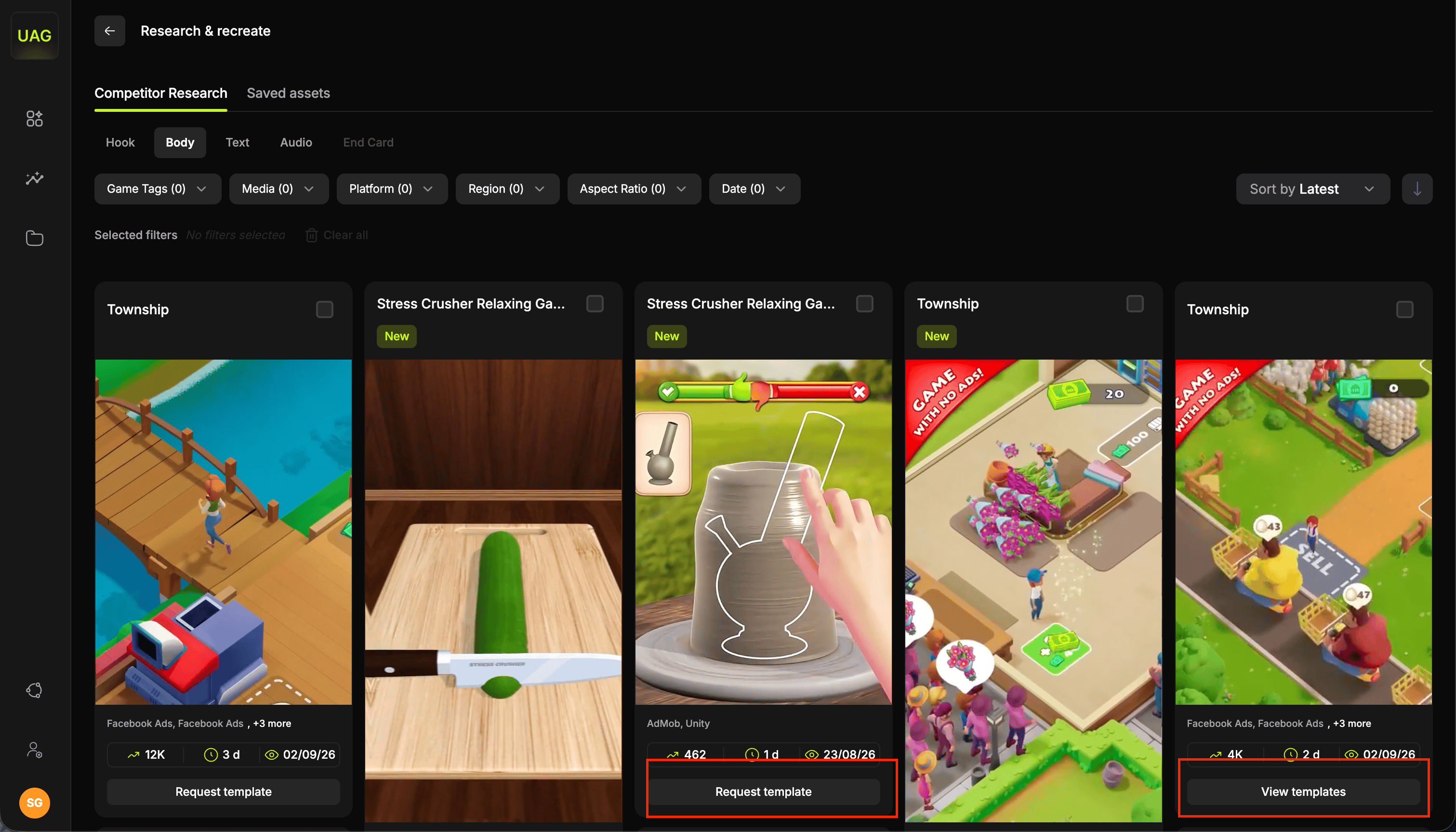
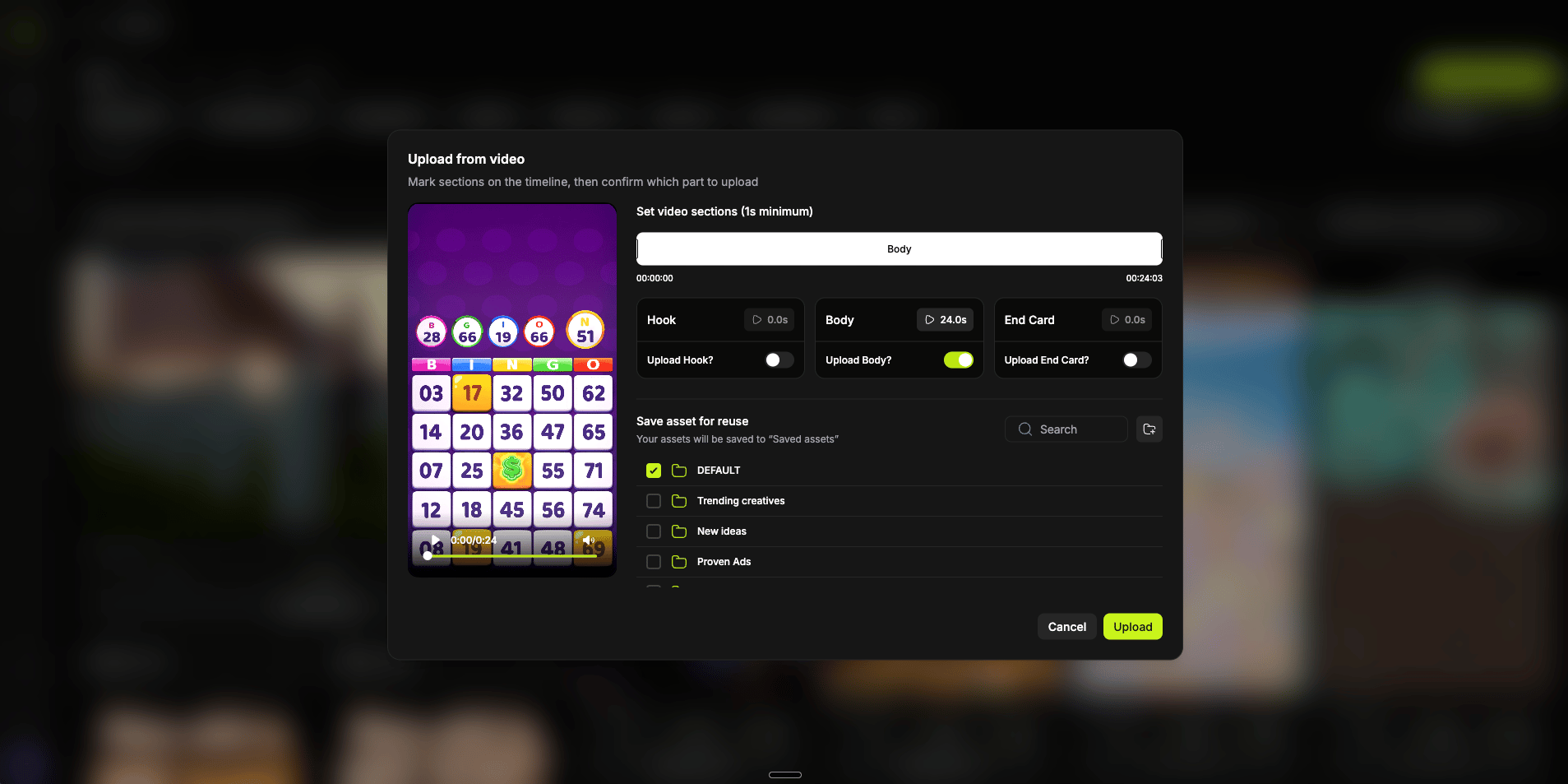
1
Choose what to upload
Each asset type has its own card with a toggle: Upload Hook?, Upload Body? and Upload End Card?. Turn on the ones you want out of this video. Anything left off stays at 0.0s and is not uploaded.
2
Mark your sections
Each part you switch on appears as a section on the timeline under Set video sections. Drag the handles to set where it starts and ends, with a minimum of 1 second per section, and its card shows the length as you adjust it. A preview player sits alongside, so you can watch the video while you place the marks.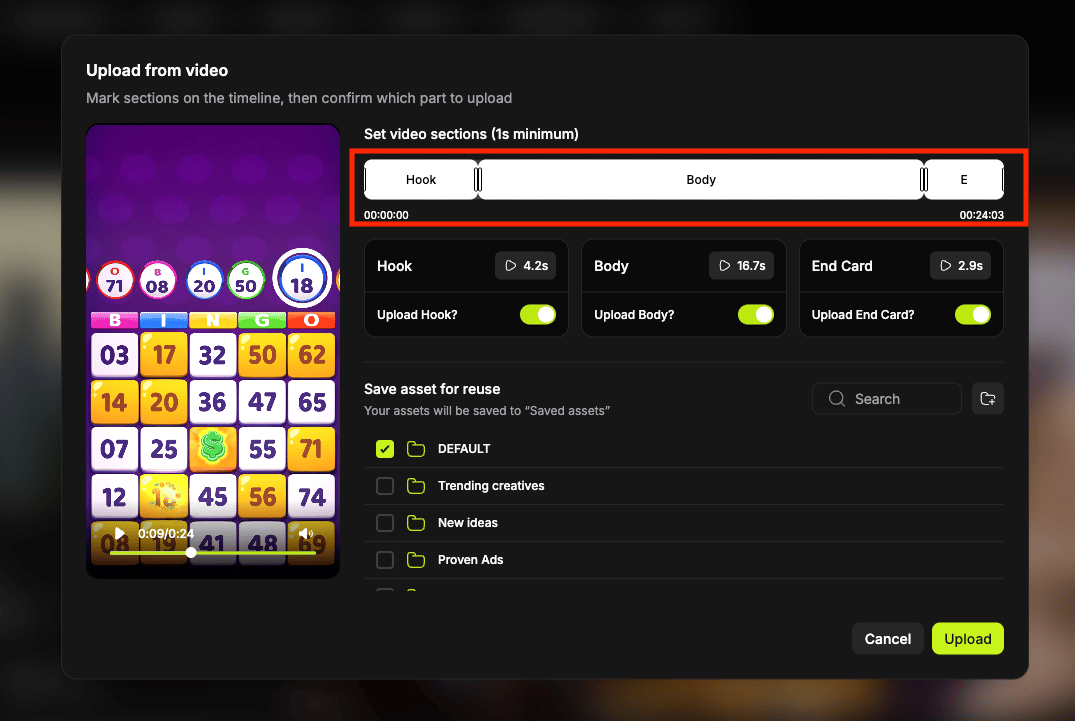
3
Pick where it saves
Under Save asset for reuse, tick the boards the assets should go into. Search finds a board by name, and the folder button creates a new one without leaving the modal. You can tick more than one board, so a single upload can serve two test cycles at once.
4
Upload
Select Upload. Every section you toggled on arrives as its own asset, filed under its own sub-tab in each board you ticked.
1
Request template
Where every body starts. Requesting it sends the gameplay to the UAG team to be turned into a template you can recreate.You have two ways to ask, Use as is for a faithful rebuild or Customise with references to steer it yourself.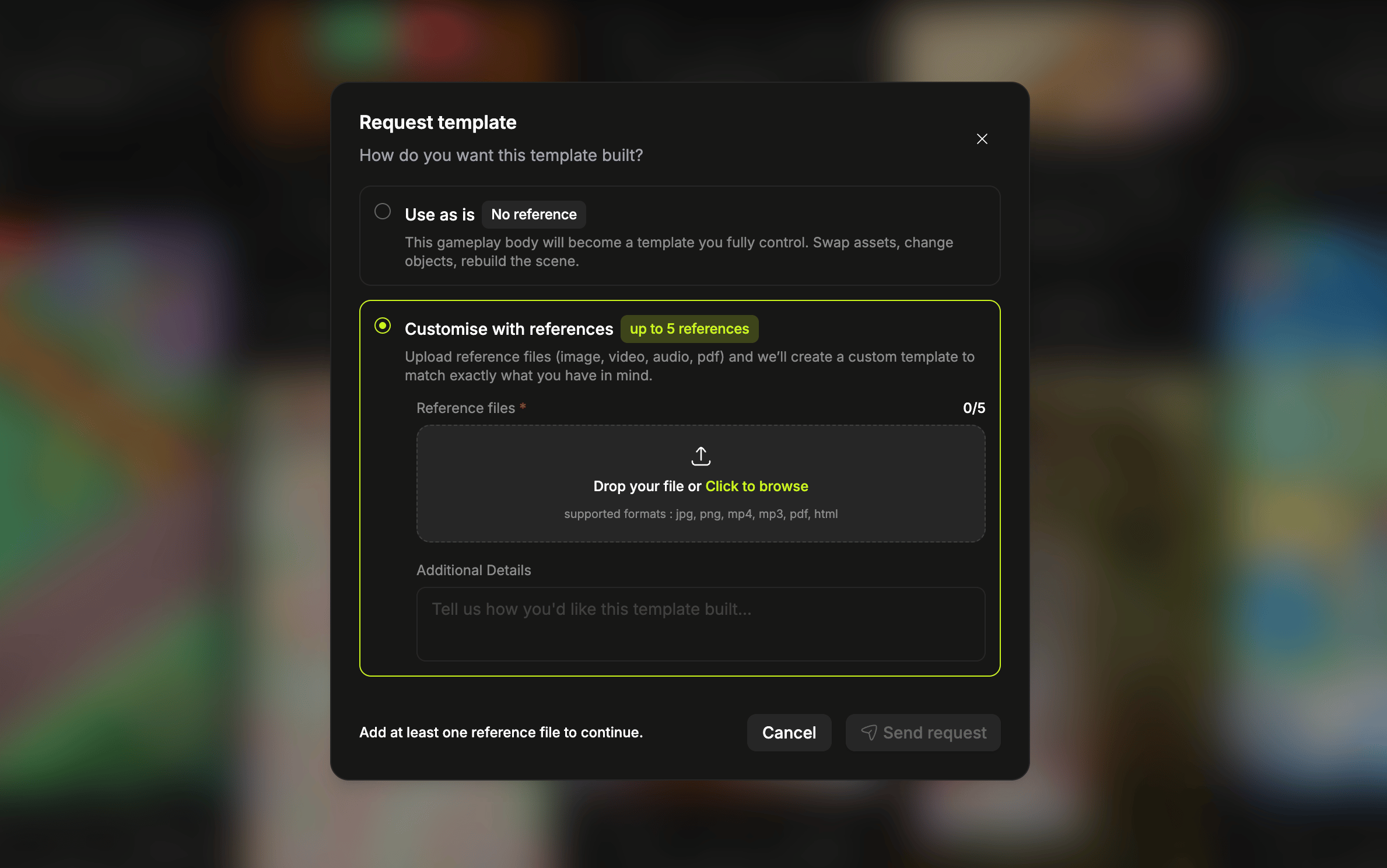
2
View templates
Once the team delivers, the action on the card changes to View templates. It shows the original alongside every template that now exists for that body.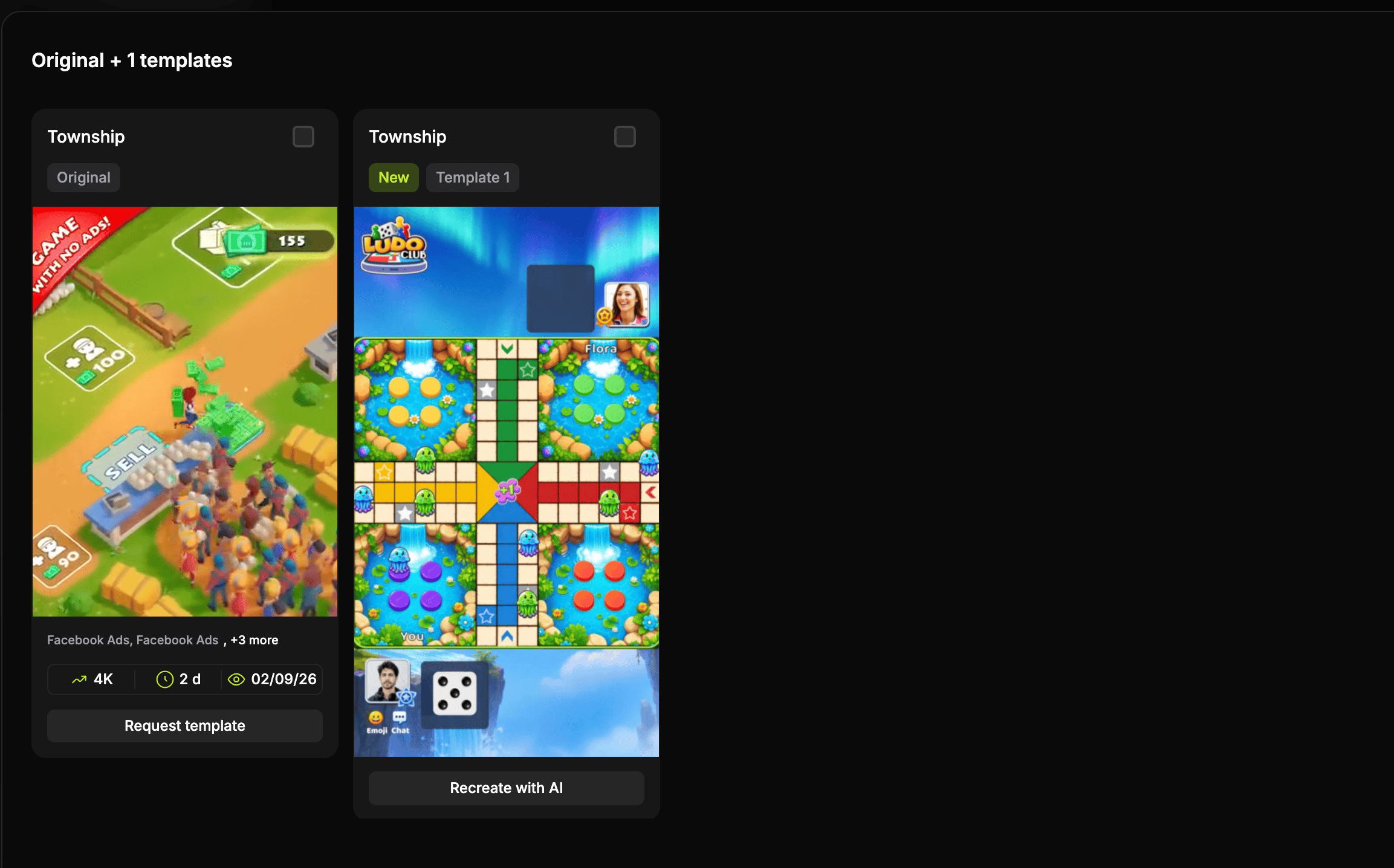
3
Recreations
After you recreate a template and save a final video, a Recreations tag appears at the top of the card. Select it and the card fans out to show every final recreation of that gameplay, so you can compare your versions side by side.
Aspect ratio is worth filtering on here more than anywhere else, because the body sets the output ratio for every video built around it in Video Studio.
Texts
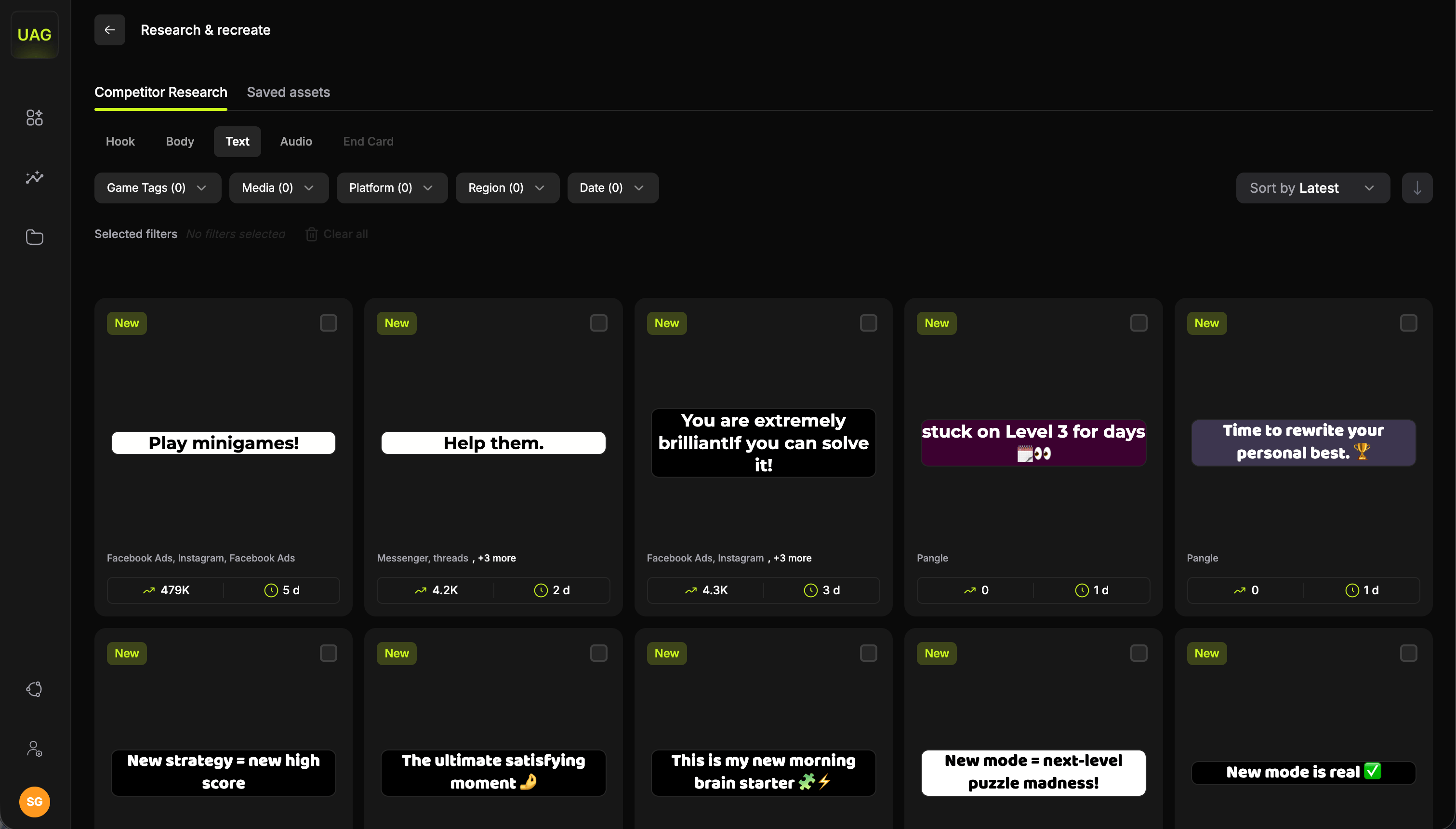
Audio
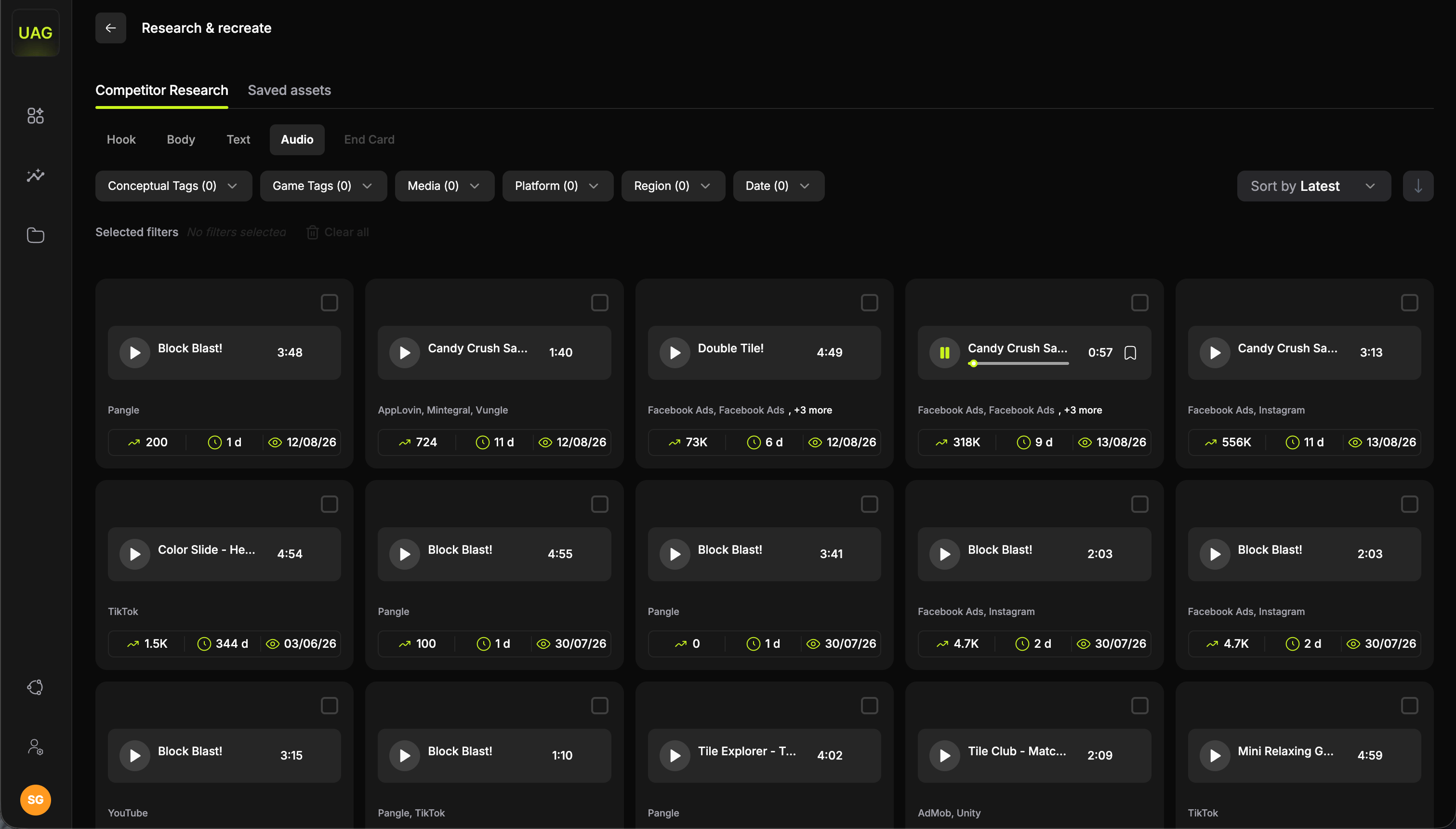
What to do next
Recreate a hook
Rebuild a competitor hook in your game’s art.
Request a body template
Turn a competitor’s gameplay into a template you can recreate.