
The bulk Recreate action is a different route. It recreates your whole selection in one click without opening the studio, so reach for it when you want volume and for the studio when you want to shape a single hook. See Working in bulk.
Recreate is offered directly on hooks. A competitor body goes through Request a body template first, and the delivered template can then be recreated. See Recreate a body.
New updates
Text rendered into a recreated hook now matches the line you gave it, and recoverable failures such as a prompt-limit error retry on their own rather than stopping.
The studio
The Recreate Hook screen puts your configuration on the left and the history on the right. The original hook sits at the top left and opens in a picture-in-picture player, so you can keep it running as a reference while you work.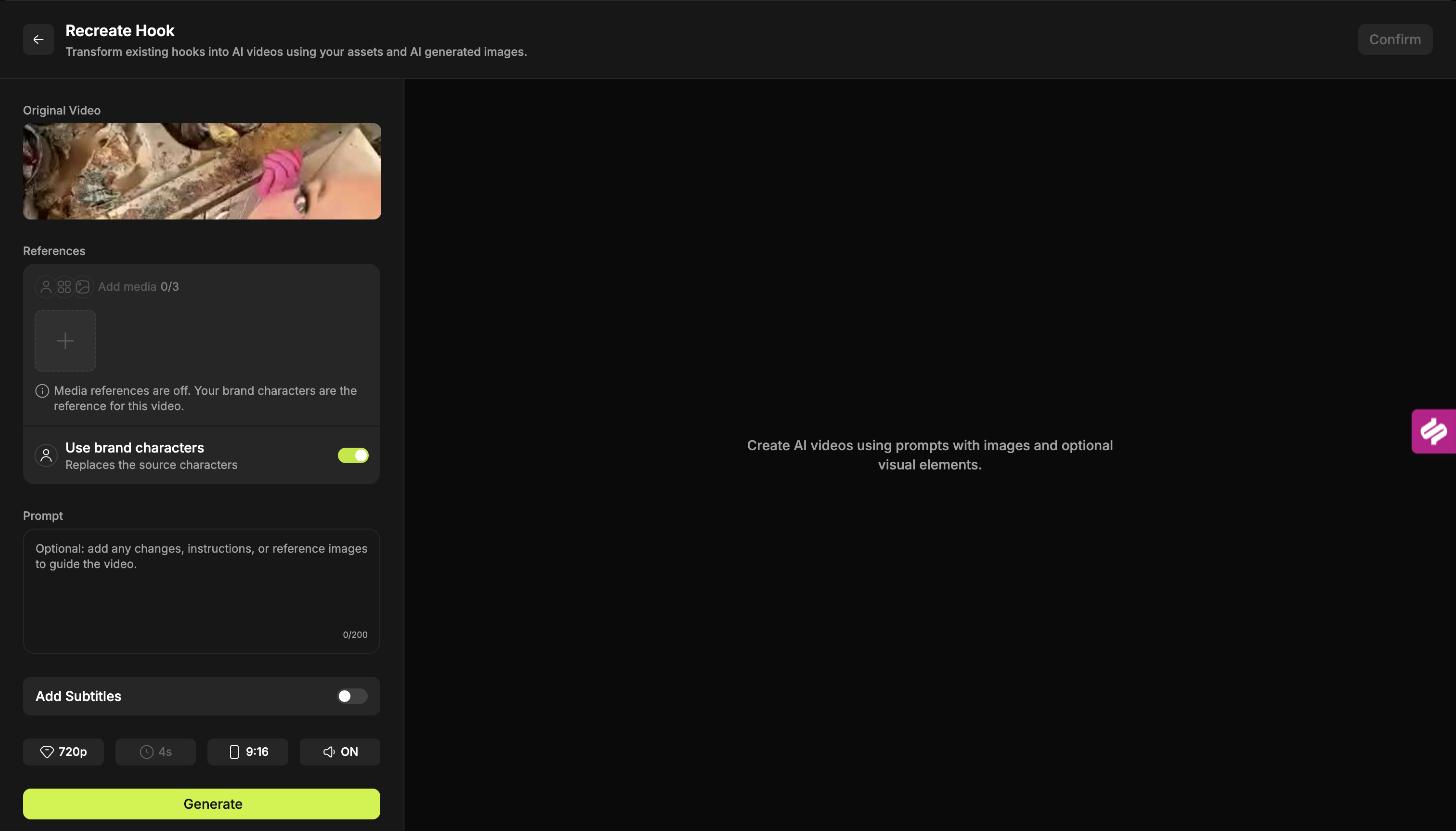
The Recreate Hook studio, with Use brand characters on by default.
Use brand characters
This toggle is on by default, and it decides where the AI takes its visual reference from. While it is on, your brand characters are the reference and no new references can be added separately.The toggle picks one source of truth. With it on, your brand library drives the look. Switch it off and the media picker becomes available for per-video references.
References
Turning Use brand characters off activates the Add media picker, which takes up to 3 references.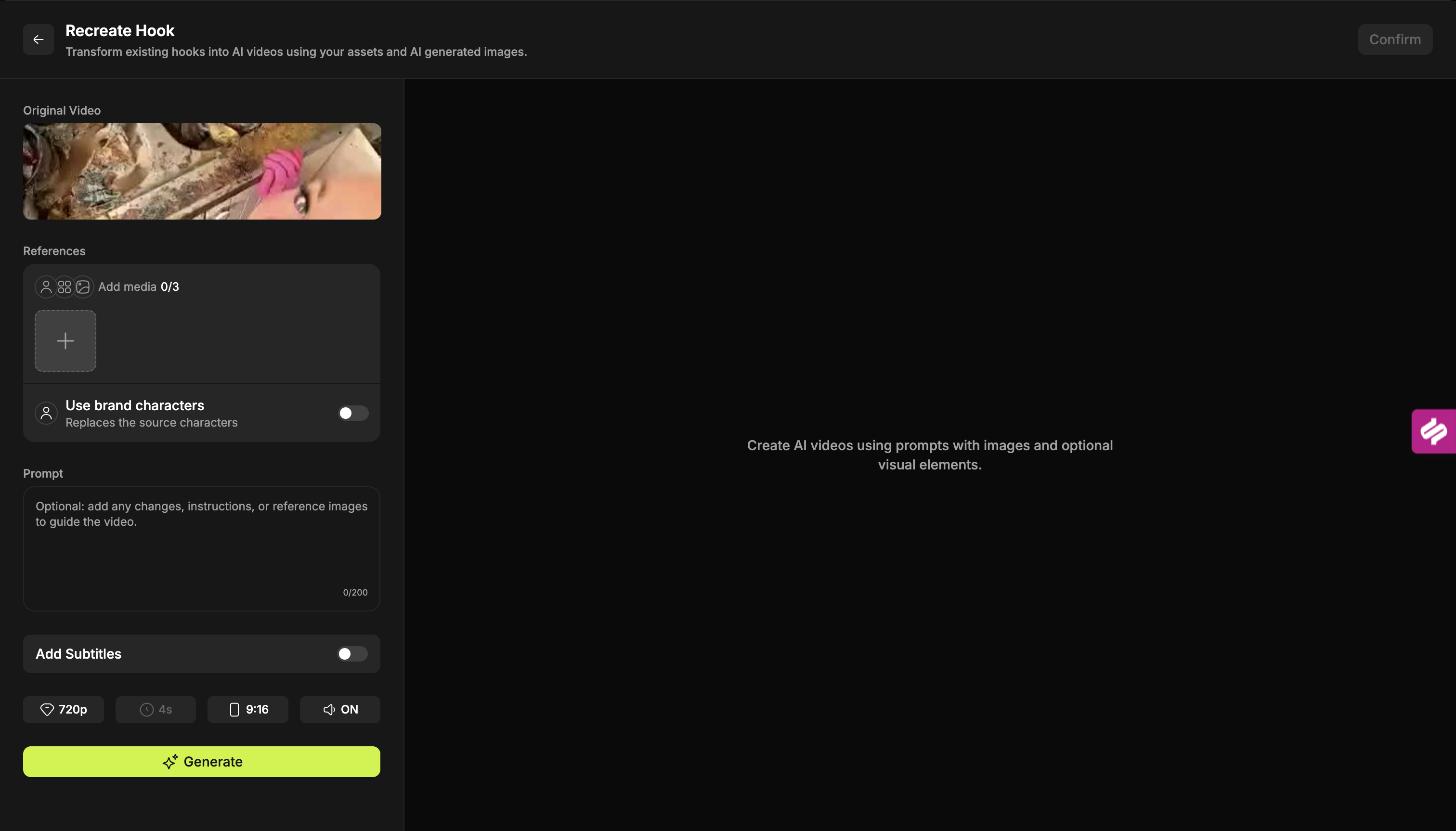
With the toggle off, the Add media picker becomes active and accepts up to three references.
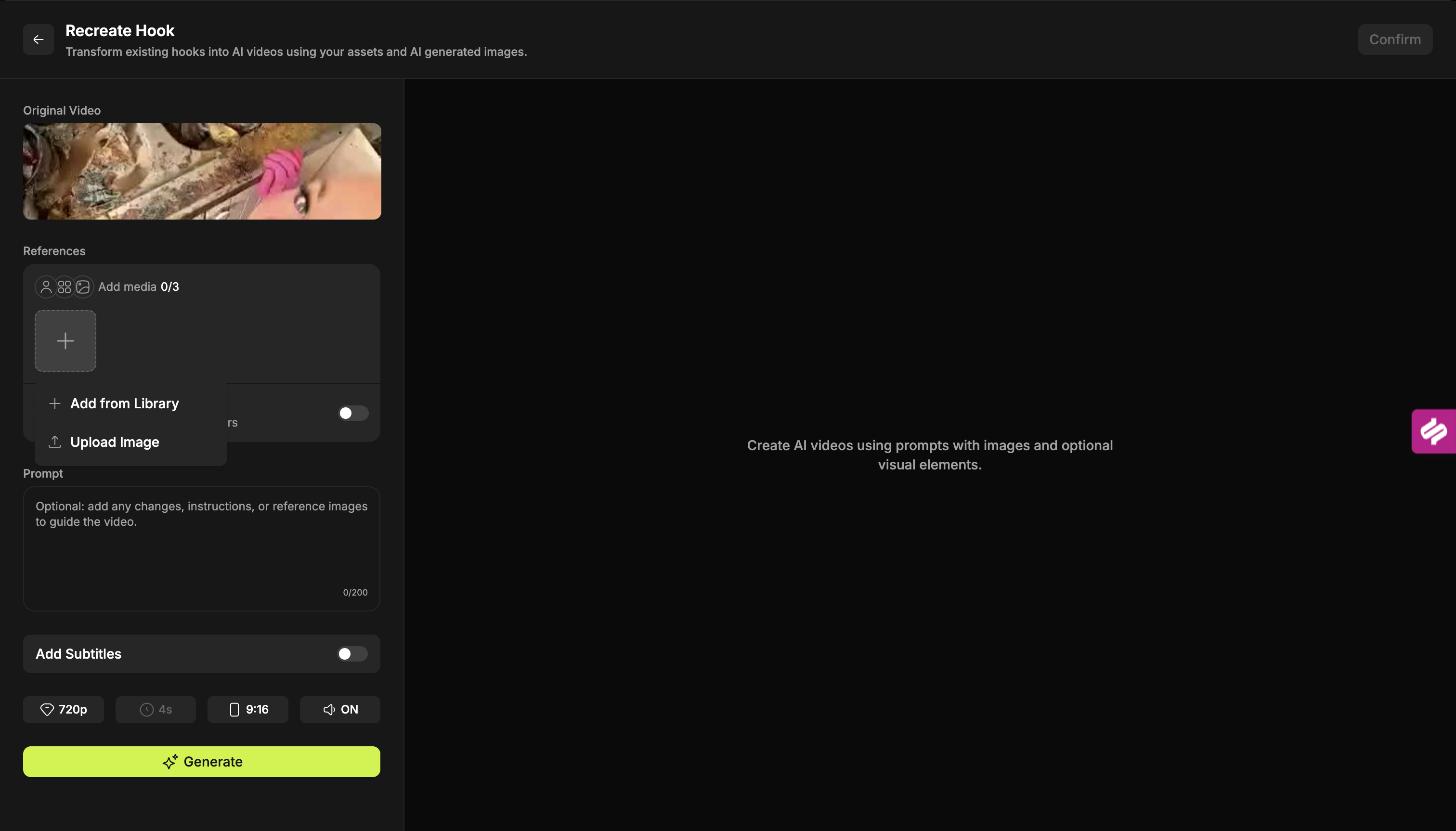
References come from your asset library or a direct upload.
Choose references that show the thing you want to appear: the character, the environment, the UI style. Three well-chosen references do more than three near-identical ones.
Prompt
An optional instruction, limited to 200 characters. The prompt is for direction the video and references cannot express on their own: a change of setting, a mood, an action. Your art style is better carried by the references. Specific and concrete works best. “Character celebrates after the last block clears” gives the model something to work with, while “Make it engaging and fun” leaves it to guess.Add subtitles
Turn this on before generating to place a transcribed text overlay onto the recreated hook. Most users scroll their feed with the phone muted, so subtitles are what carry your message when nobody hears the audio. Hooks with no speech generate without a subtitle.Output settings
Set these with the chips above Generate:Duration is inherited rather than chosen, so the chip shows the length of the hook you are recreating. A 4 second source produces a 4 second recreation.
Where the result goes
Each generation appears in the history on the right of the studio. Generate as many as you like against the same hook and they all collect there.Download and rate
Three controls sit on every generated video: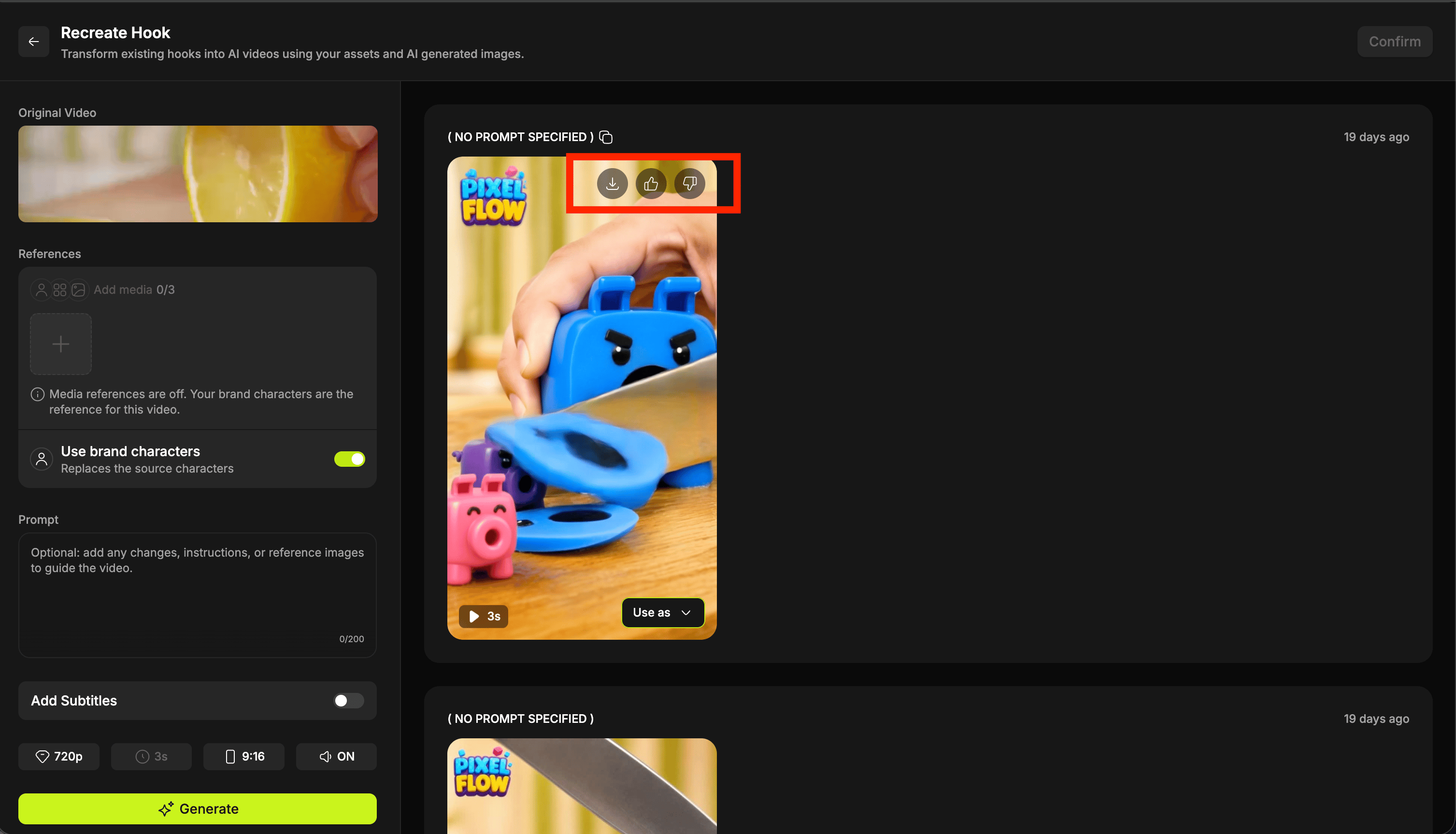
Set a video as final
.gif?s=e7651910968e305e7fad4300af7c4723)
Finding your recreations
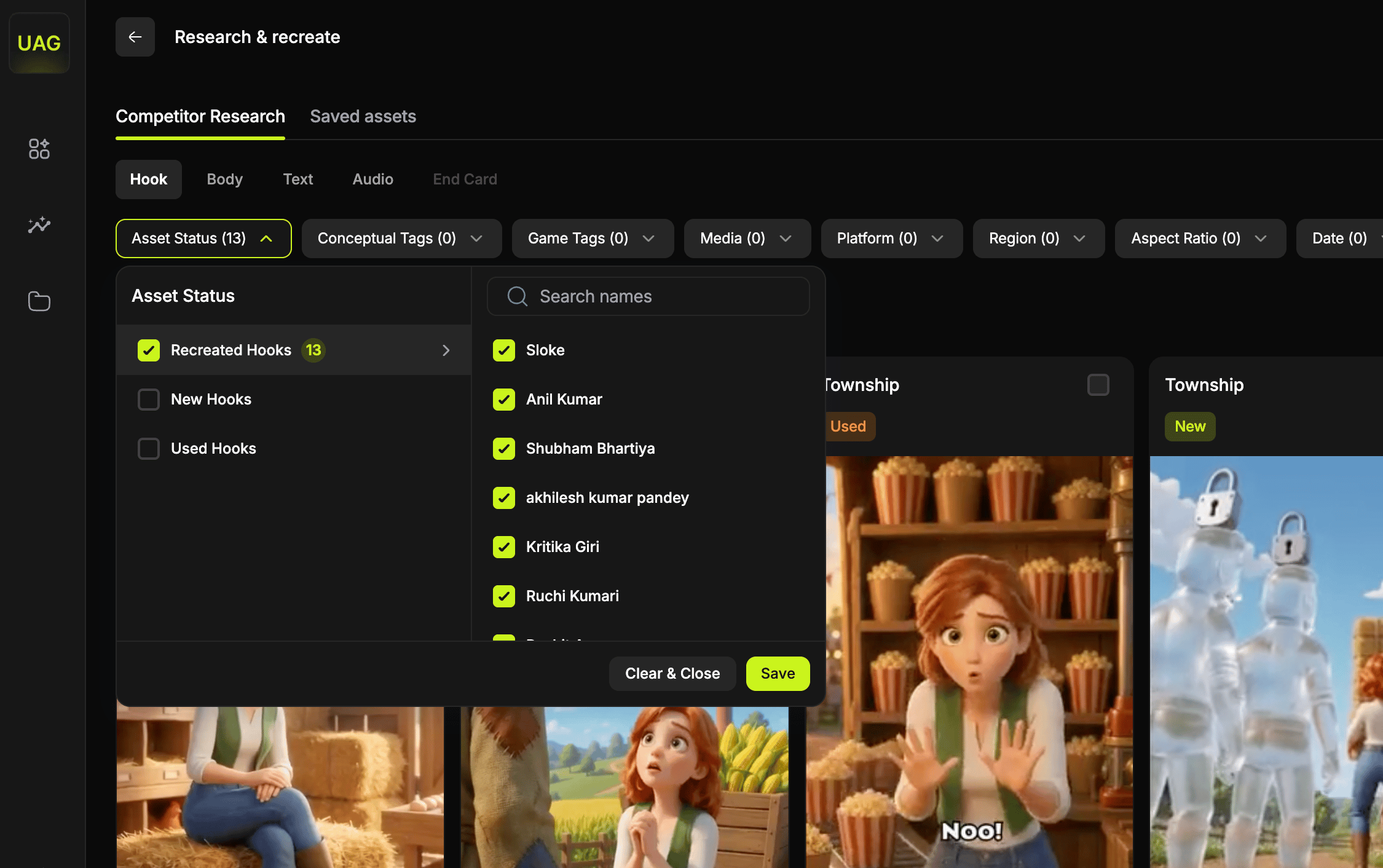
Once a hook has finals against it, there are two ways to reach them. The recreations tag on the card. The source card carries a tag such as1 recreations. Selecting it fans the card out into Original + N recreations, showing the original beside every version you set as final, so you can compare them directly. No filter needed.
Getting better results
Build the brand assets library first
Build the brand assets library first
Reference quality shapes output quality more than prompt wording does. A library with clean, well-named character and environment art raises the floor on every generation you run afterwards.It matters most here, because the toggle defaults to on and draws straight from that library.
Recreate proven hooks
Recreate proven hooks
Sort the competitor library by active days before you pick. Rebuilding a hook that has run for months means starting from a validated idea rather than an untested one.
Generate the same hook more than once
Generate the same hook more than once
Output varies between runs. Producing two or three versions of a hook you believe in, then keeping the best, is a cheap way to raise the quality of what you ship.
Vary one thing at a time
Vary one thing at a time
When a result is close, change either the references or the prompt rather than both. That way you can tell which change moved the output and repeat it next time.